Active Directory Federation Services (ADFS) is Microsoft’s SSO solution, allowing users to authenticate once with their Active Directory credentials and access AlphaLearn LMS without a separate login.
Step 1: Enable ADFS SSO in AlphaLearn
- Go to Customize → SSO.
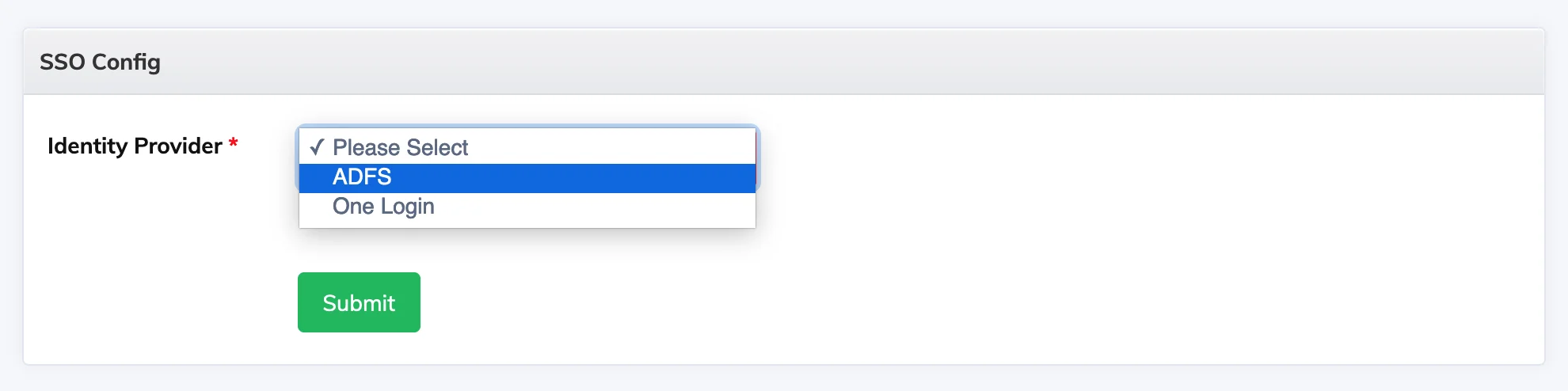
- Click Create, select ADFS as the Identity Provider, and click Submit.
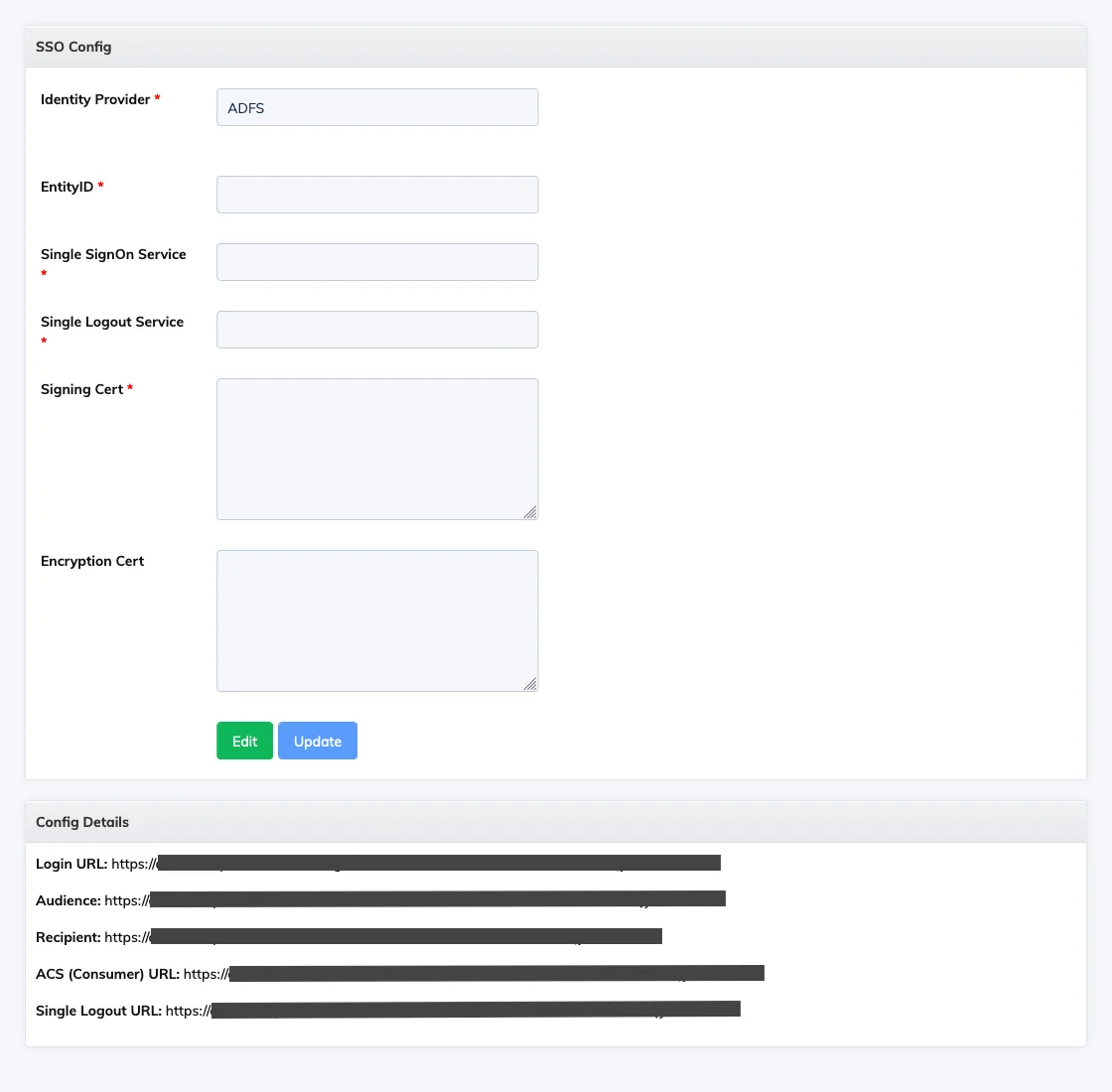
- Click the ADFS row to view the Config Details – you will need the Entity ID URL in the next step.

Step 2: Add a Relying Party Trust in ADFS
- On your ADFS server, open the ADFS Management Console, expand Trust Relationships, and select Relying Party Trusts.
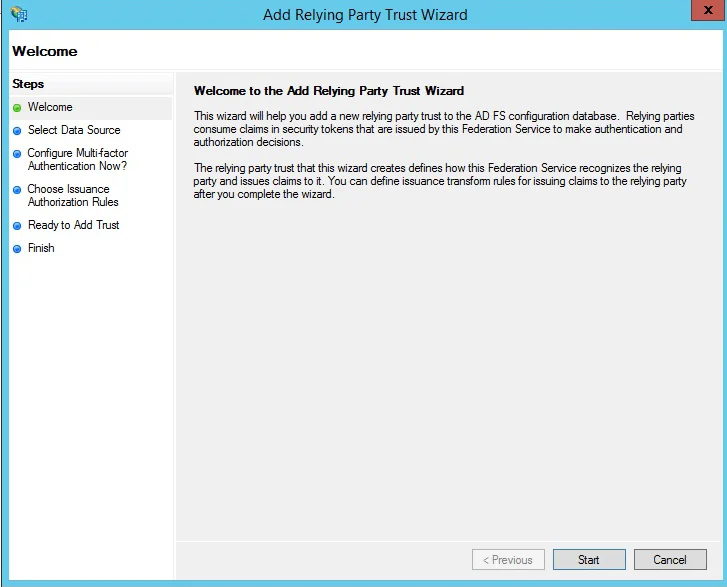
- In the Actions panel, click Add Relying Party Trust and click Start.
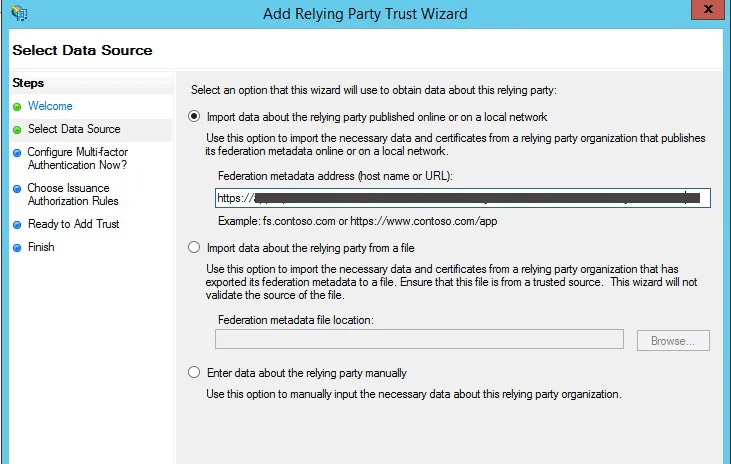
- Paste the Entity ID URL from AlphaLearn into the Federation Metadata address field and click Next.
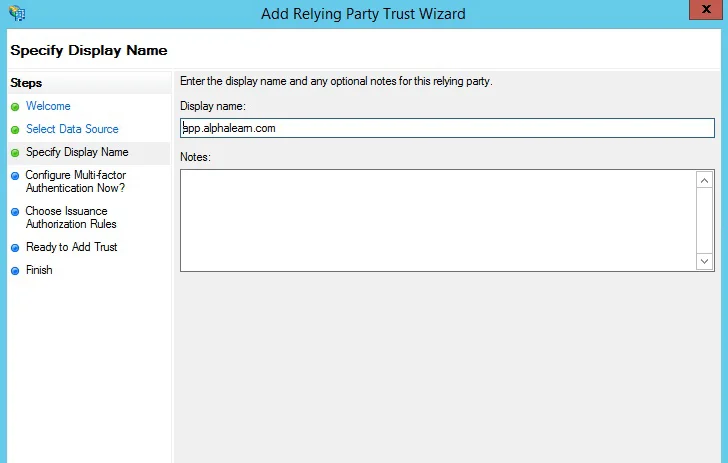
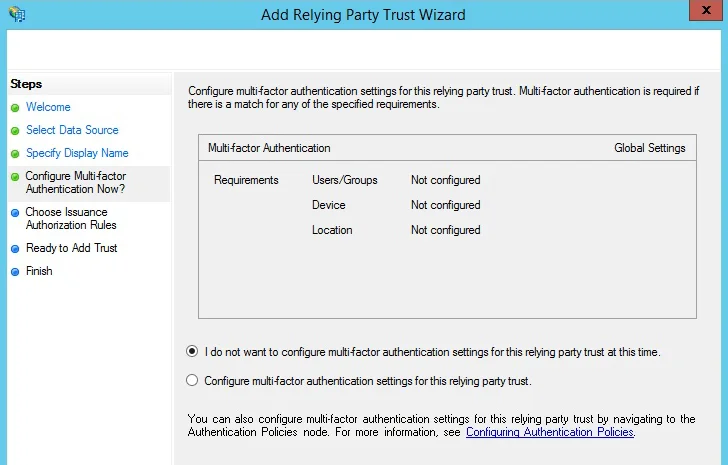
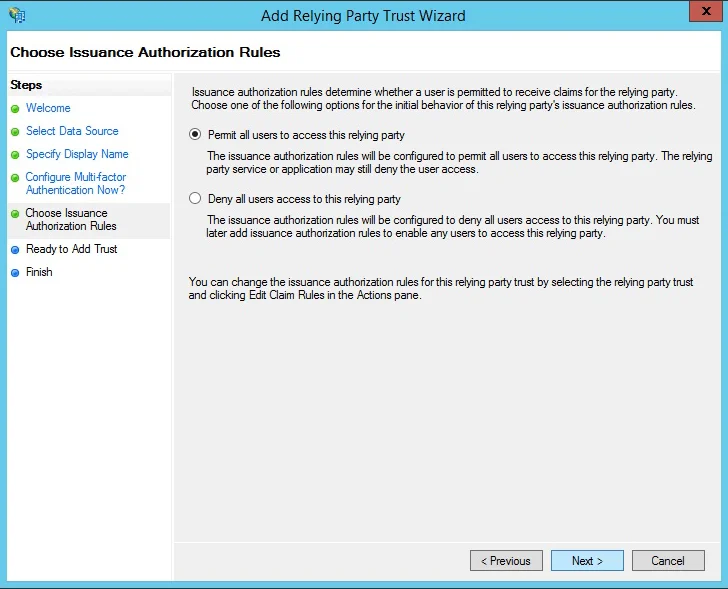
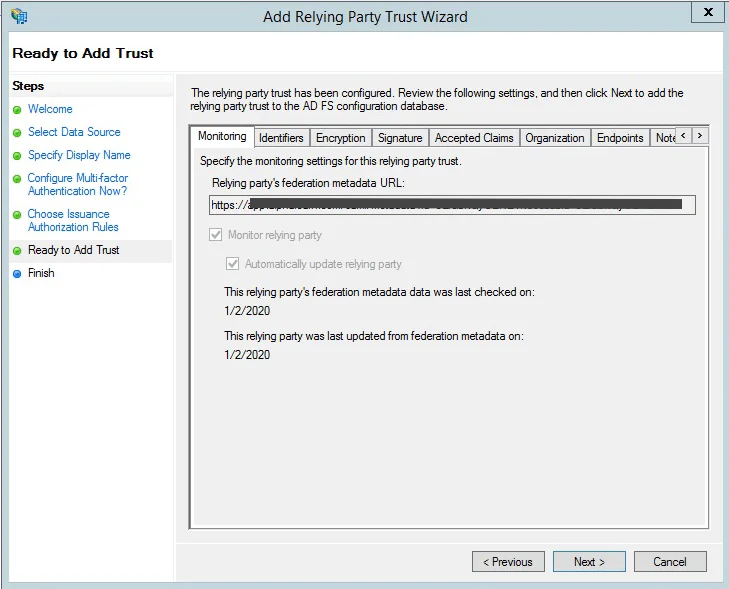
- Click through the wizard. On the Ready to Add Trust page, verify that the certificates are present across the tabs.
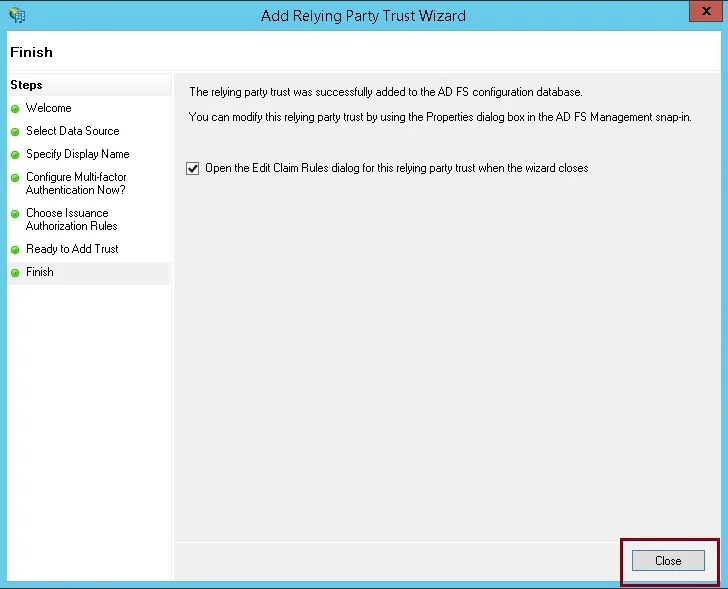
- Click Next to add the Relying Party Trust.
Step 3: Configure Claim Rules
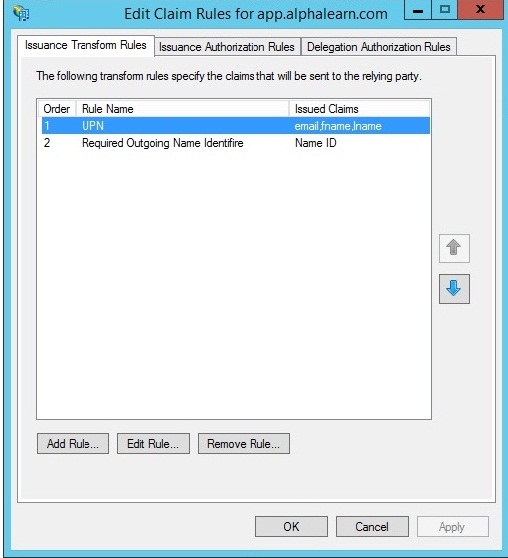
- Select the Relying Party Trust you just created and click Edit Claim Rules.
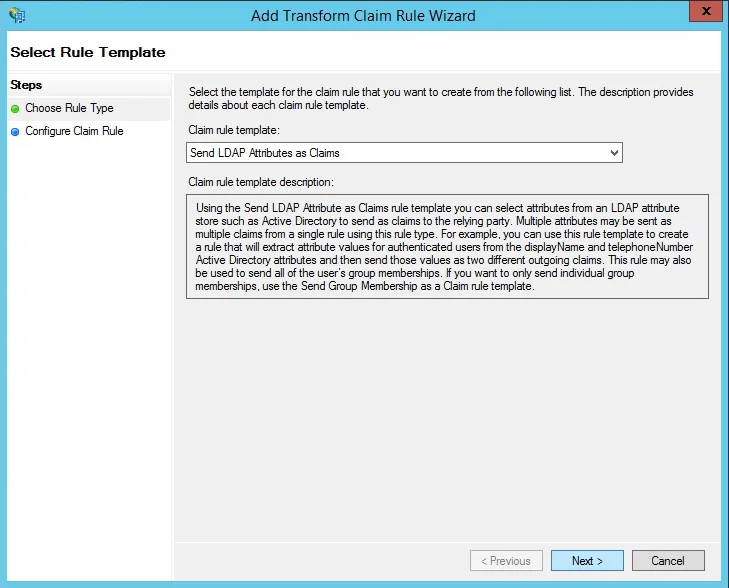
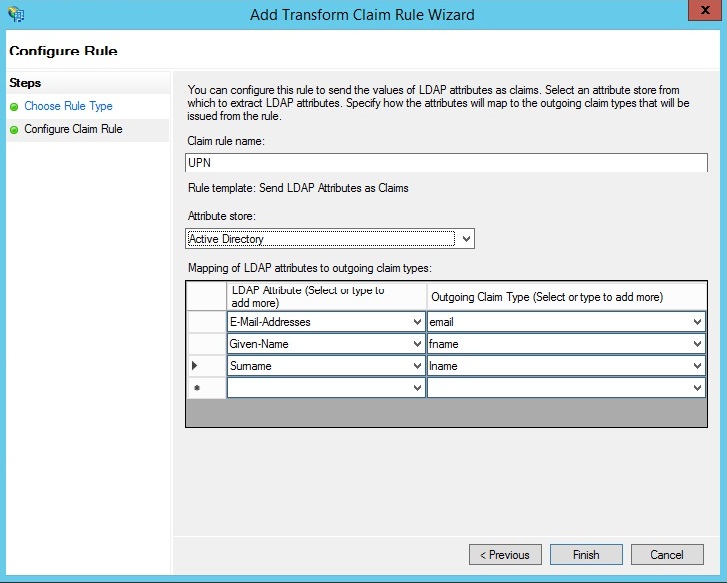
- Add an Issuance Transform Rule using the Send LDAP Attributes as Claims template. Map at least UPN and one additional attribute such as mail.
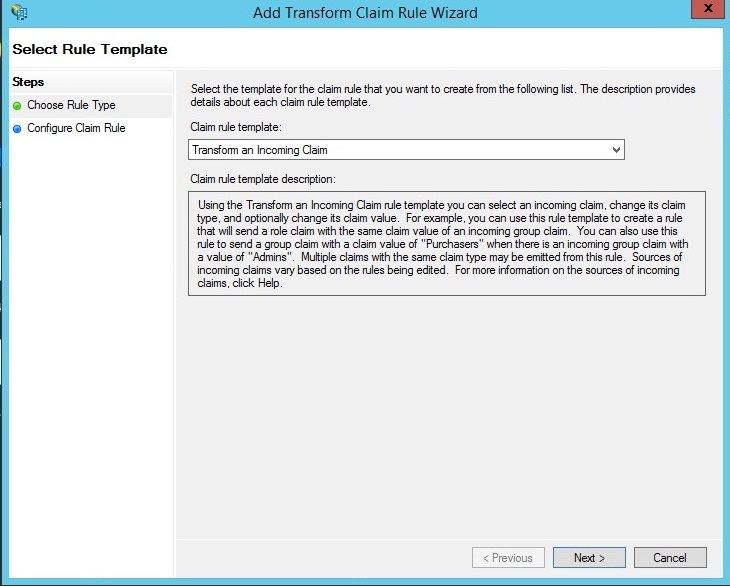
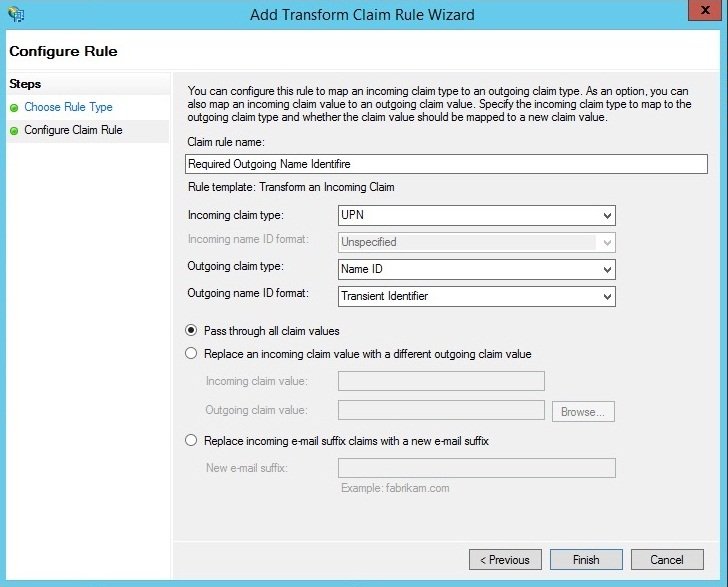
- Add a second Issuance Transform Rule using the Transform an Incoming Claim template. This rule is required for SAML authentication to work correctly with AlphaLearn.
Expected result: You should end up with two Issuance Transform Rules – one for sending LDAP attributes and one for transforming the incoming claim.