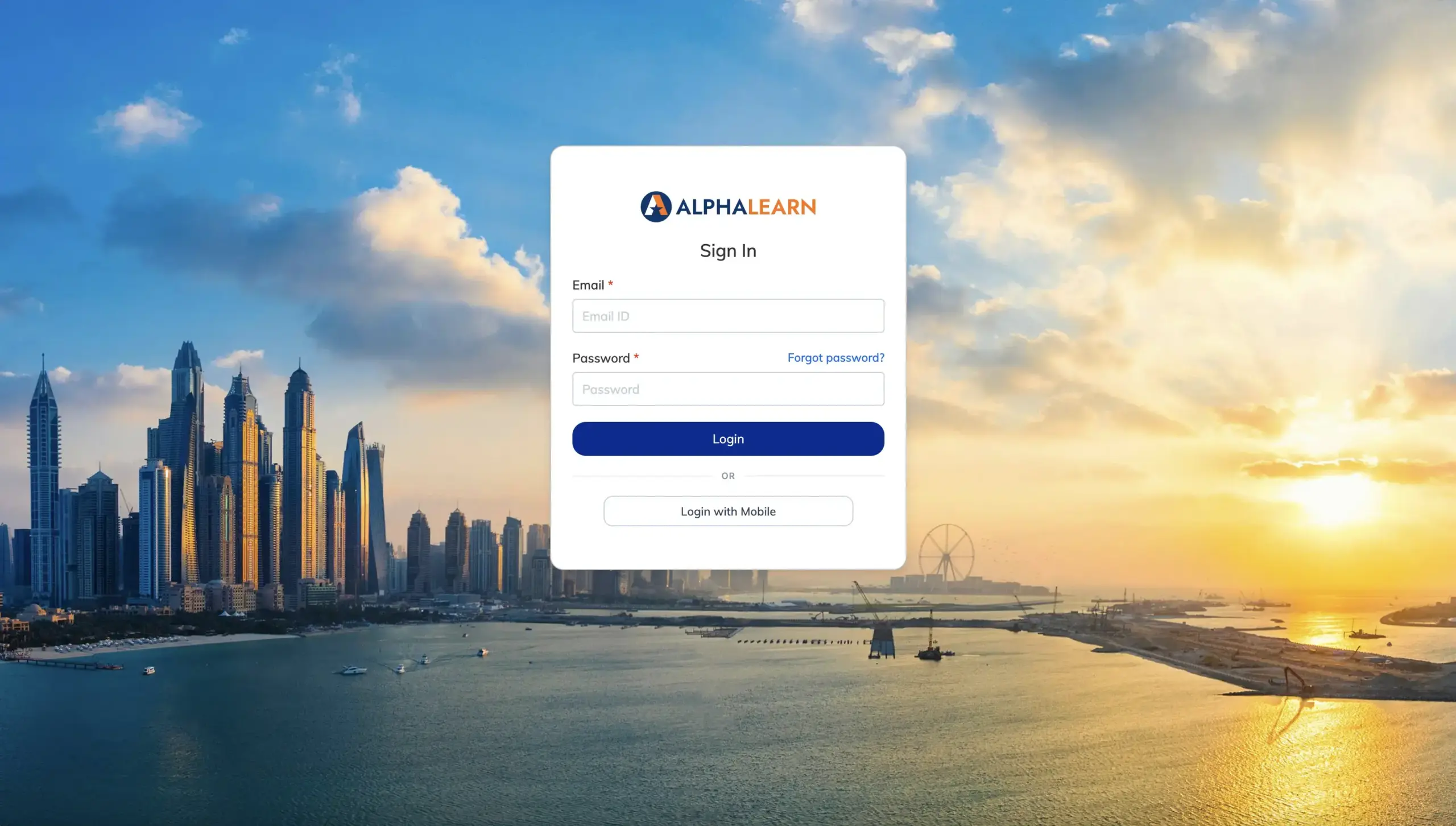
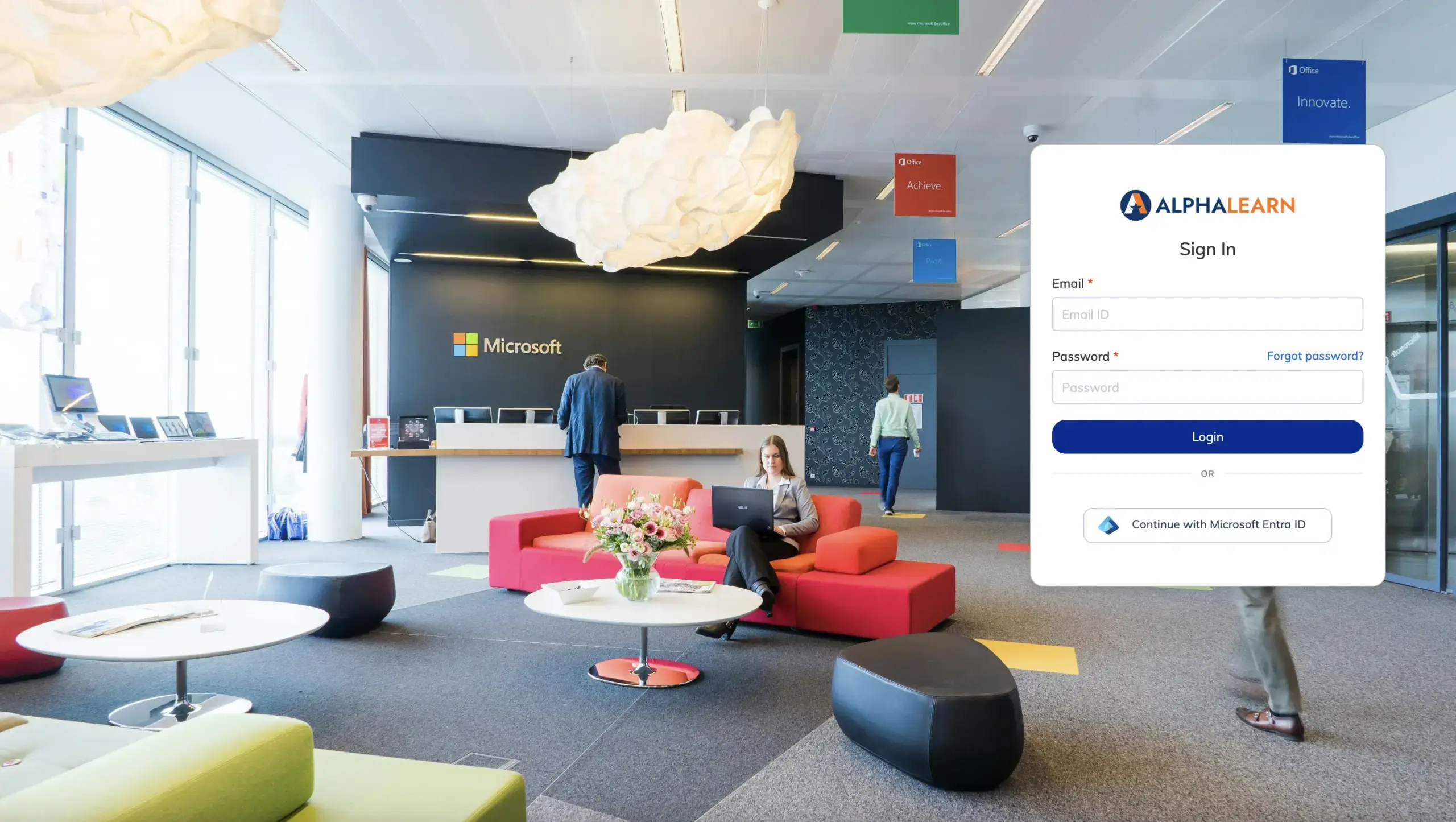
The Custom Login Page lets you brand your LMS login screen with a background image and choose where the login form appears on the page.
Steps
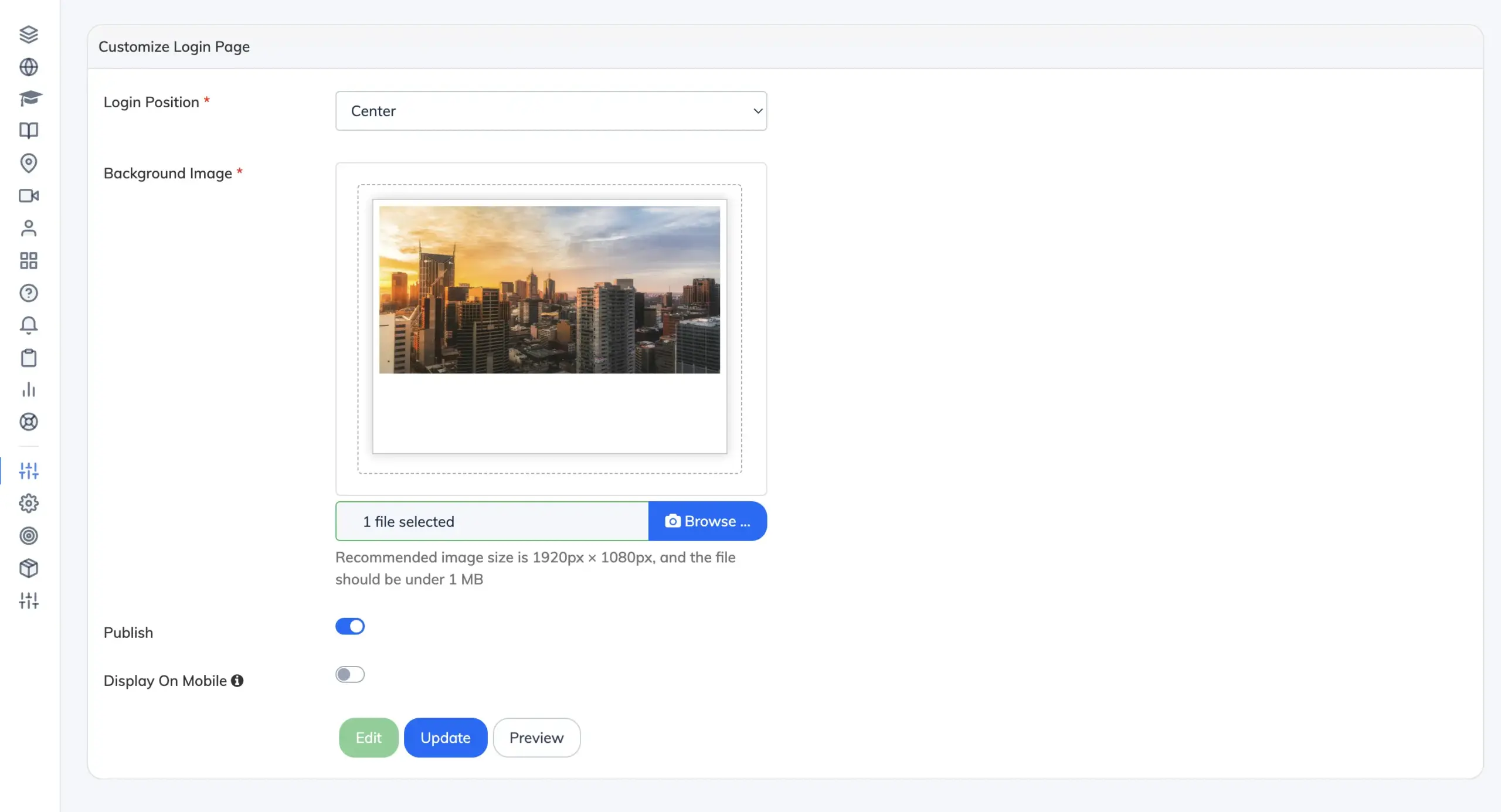
- Go to Customize → Login Page.
- Select the Position for the login form: Left, Right, or Center.
- Click Browse and upload a background image. Recommended size: 1920×1080px, maximum file size: 1MB.
- Click Submit to save.
- Click Edit → Preview to see how the login page will look.
- Enable the Publish toggle to make the custom login page live.
- (Optional) Enable Display on Mobile to show the background image on mobile devices.
- Log out and visit your login page to confirm the changes.
Note: The Custom Login Page is not shown when a Custom Home Page is enabled, as the Custom Home Page includes its own login and registration flow.