
The Custom Home Page lets you publicly showcase your course catalogue with a branded landing page – including a banner, course listings, registration and login controls, footer, and SEO settings. It also supports paid course enrollment via a payment gateway.
Registration and Login
- Hover over the Register element and click the Edit icon.
- Toggle the following options as needed:
- Registration / Login – Enable or disable public registration and login.
- Sign Up / Sign In with Google – Allow learners to register or log in with a Gmail account.
- Registration requires manual activation – New accounts will need admin approval before they can log in.
- Font Color & Size – Customise the appearance of the Register/Login link.
- Acceptance of Terms – Add an “I Agree” checkbox linked to your terms and conditions.
- Click Save.
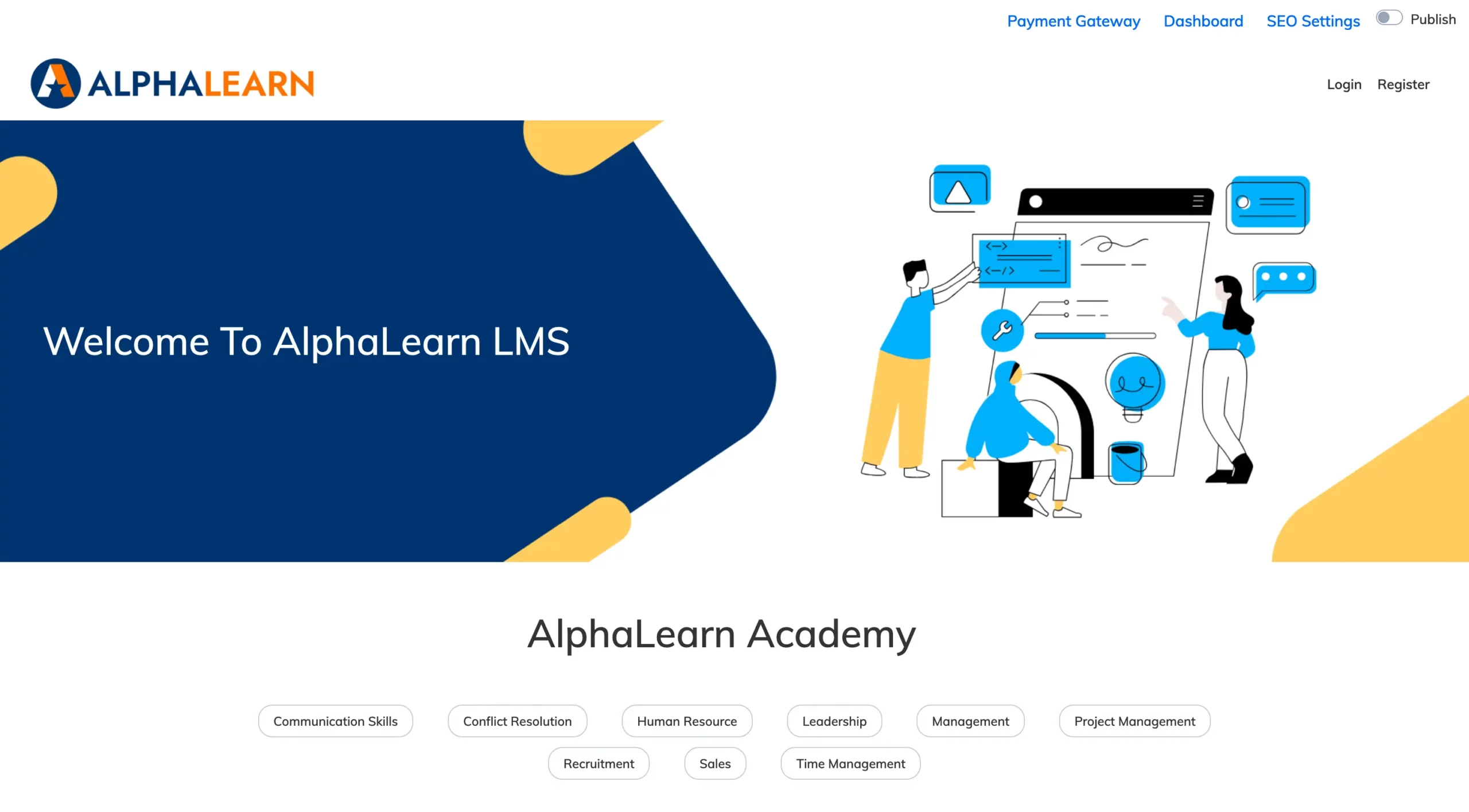
Banner
- Hover over the banner and click the Edit icon.
- Enter your banner text and choose text position, font size, and colour.
- Add a Link to redirect users when they click the banner.
- Click Browse to upload a banner image (follow the recommended dimensions shown on screen).
- Click Save.
Course Listing
- Hover below the banner near the welcome text and click the Edit icon.
- Configure the following:
- Title, Font Size / Color, Description – Customise the section heading and introductory text.
- Source – Select Course Library to list all courses added to the library.
- List Style – Choose Grid or List view.
- Course Code and Duration – Toggle whether to display these on each course card.
- Click Save.

Footer
- Hover over the footer and click the Edit icon.
- Set the Footer Background colour and add a Description.
- Click Save.
- To add footer links, hover over the footer links area or click Add More Links. Set the link colour, title, and URL, then click Save.
SEO Settings
Click SEO Settings in the top right and enter a Title, Meta Description, and Keywords for your home page.
Payment Gateway
Click Payment Gateway, enter your API Key and Secret, and click Submit. Toggle the Default switch to make it your active payment gateway for paid course enrollments.
Publish
Once everything is configured, click the Publish switch to make your Custom Home Page live.