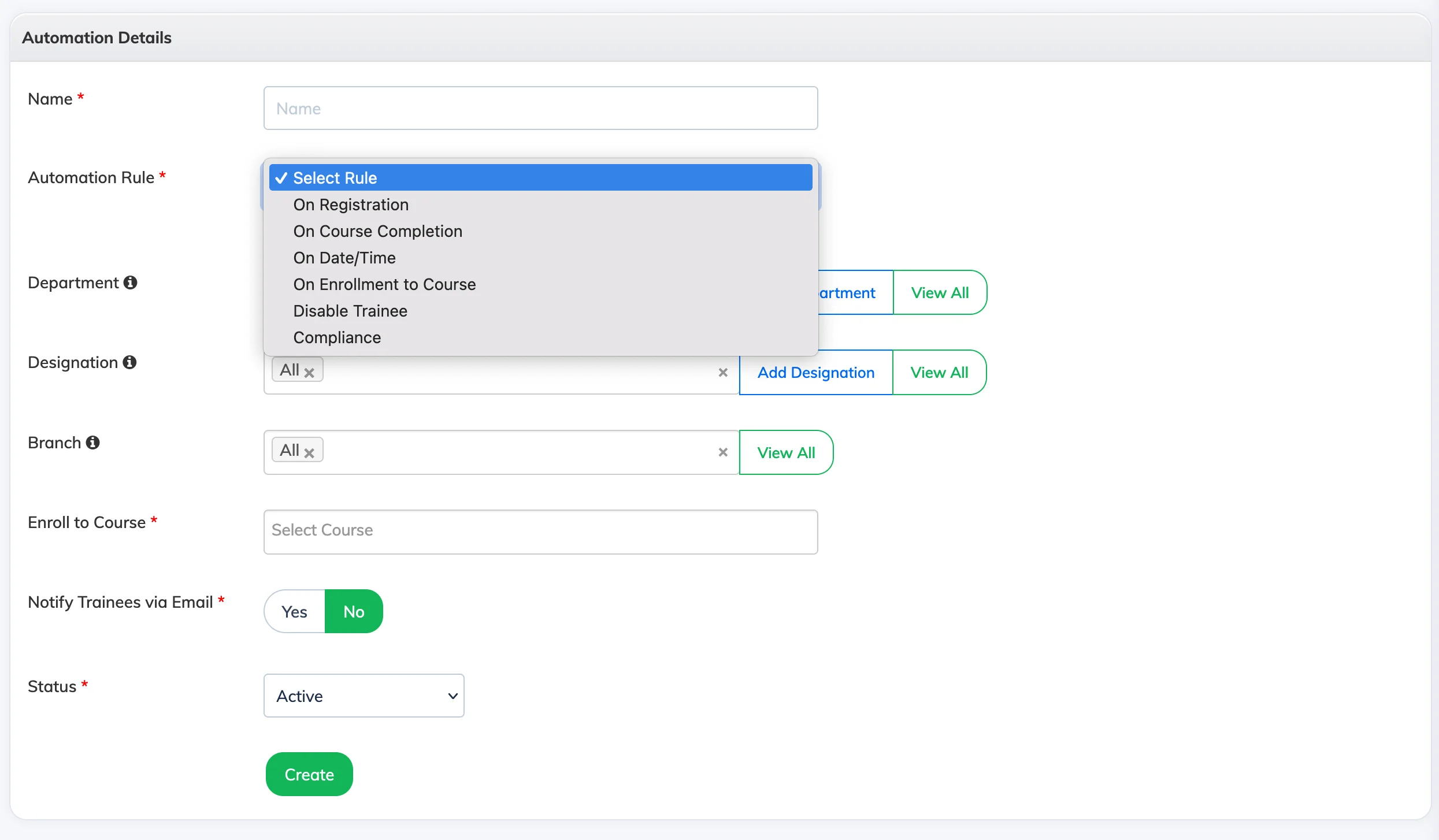
Automation rules trigger course enrolments or other actions automatically based on Trainee activity or scheduled dates – removing the need for manual admin intervention.
Create an Automation Rule
- Go to Settings → Automation.
- Click + Automation and enter a name for the rule.
- Select a trigger:
- On Registration – Triggers when a new Trainee is added to the LMS.
- On Course Completion – Triggers when a Trainee completes a course.
- On Date / Time – Triggers enrolments on a specific scheduled date and time.
- On Enrollment to Course – Triggers when a Trainee is enrolled in a course.
- Compliance – When a Trainee completes a course, automatically enrols them in the same or another course after a set number of days.
- Disable Trainee – Disables a Trainee account if they have not logged in for a specified number of days.
- Login Reminder (Enrolled Users) – Sends an email reminder to Trainees who are enrolled in a course but have not logged in for a specified number of days.
- Optionally, filter the target audience by Department, Designation, Branch, or Proficiency.
- Configure the options relevant to the selected trigger.
- Set Notify Trainees via Email to Yes to send an enrolment notification.
- Click Create.