Follow the steps below to create an AI-Generated SCORM Course in AlphaLearn LMS and manage your AI credits effectively:
- Creating an AI-Generated SCORM Course
- Go to Courses → View Courses.
- Click AI Course Builder.
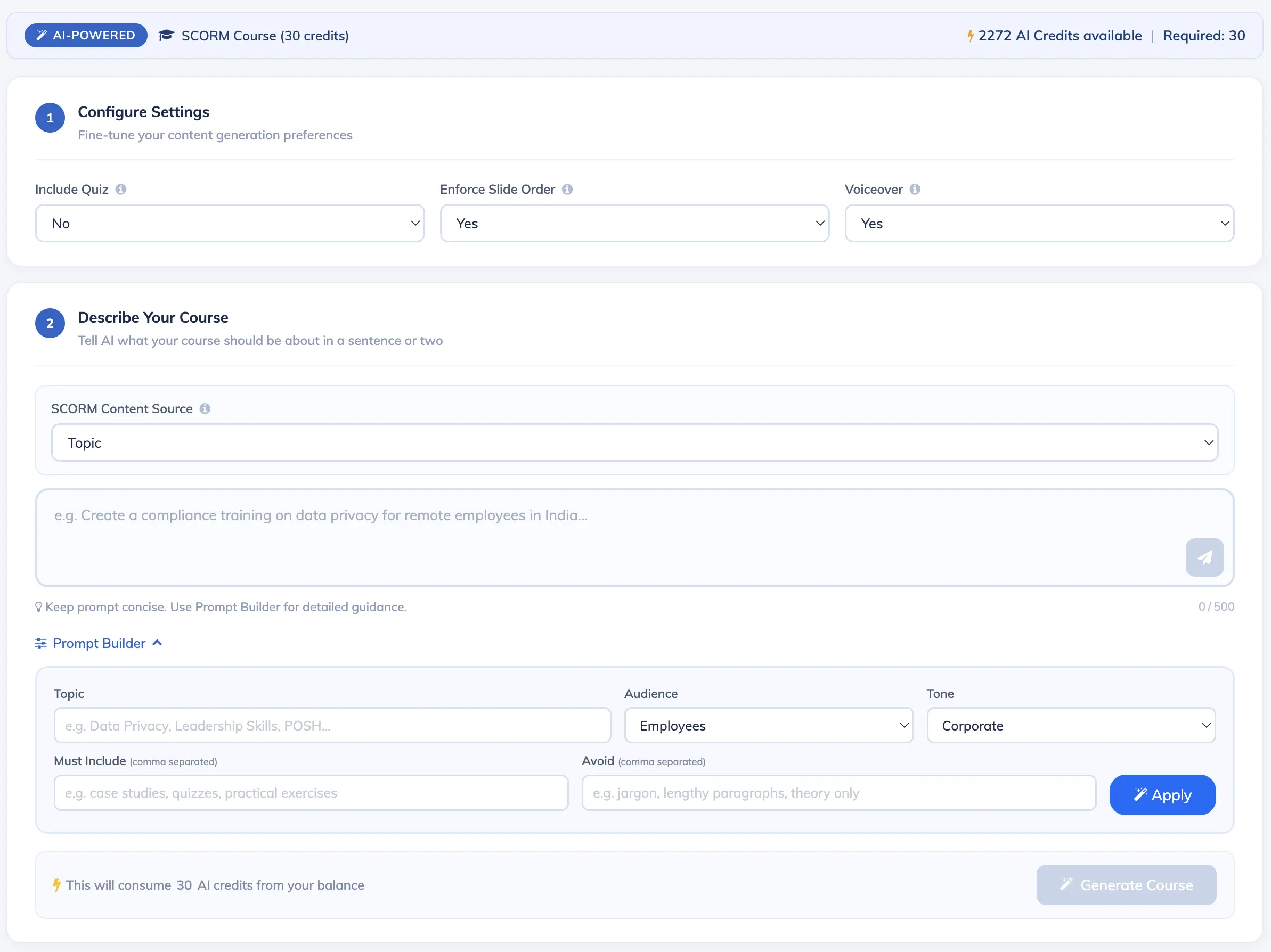
- Configure the following settings:
- Include Quiz: Choose Yes to add a quiz at the end of the course, then specify the number of questions and minimum passing score. Choose No to skip.
- Enforce Slide Order: Choose Yes to require trainees to complete slides in sequence, or No to allow free navigation.
- Voiceover: Choose Yes to enable browser-based text-to-speech narration, or No to disable it.
- Under SCORM Content Source, select one of the following options:
- Topic: Enter a topic name, or click Prompt Builder for guided input.
- PDF (Auto Formatted): Upload a PDF to generate a course with automatic formatting.
- PDF (Maintain Document Format): Upload a PDF to generate a course that preserves the original layout and formatting.
- Click Generate Course. Your AI-generated course will be ready shortly.
- Managing AI Credits
- Your subscription includes a set number of complimentary AI credits.
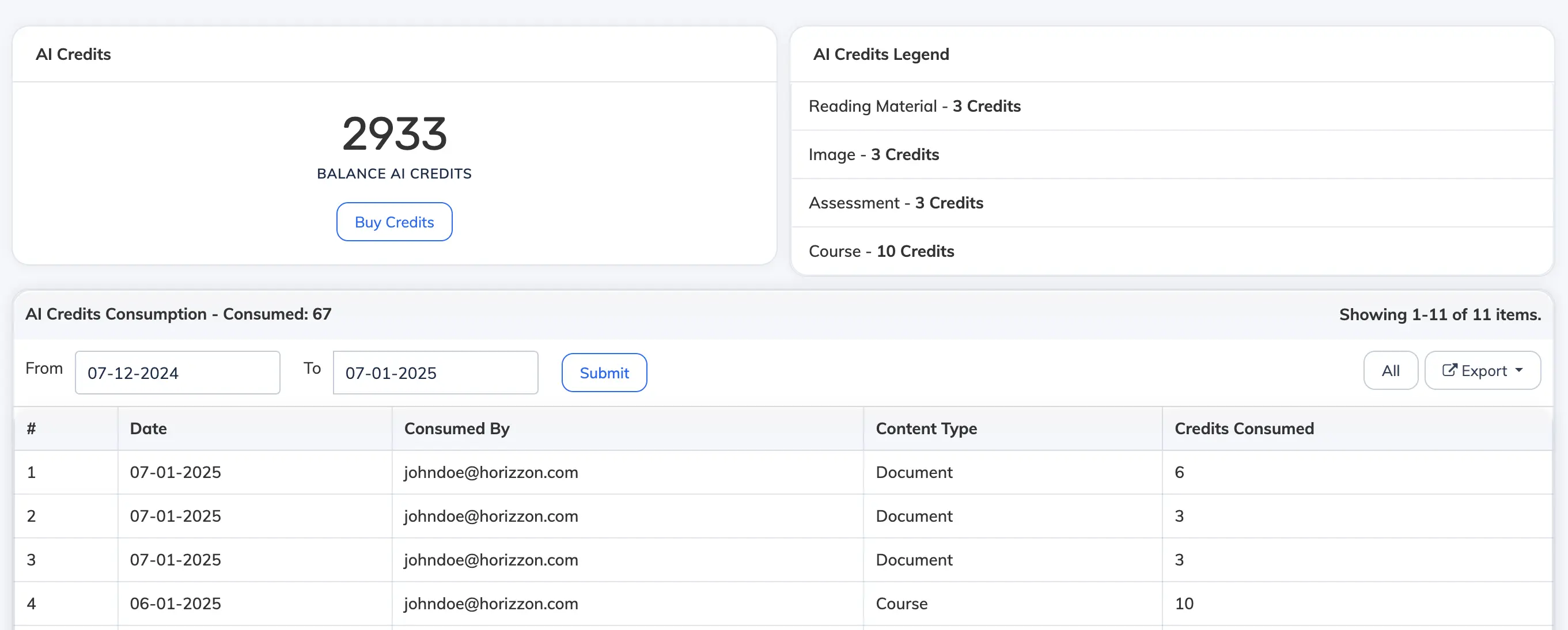
- To monitor your usage, go to Settings → AI Credits.
- Here you can view your available balance and a detailed usage history.
- To top up, click Buy Credits and submit a purchase request.