
The Question Bank is a centralised repository for creating and managing questions that can be imported into quizzes and exams. Questions are organised using categories and tags.
Add Questions
- Go to Evaluation → Question Bank.
- Click + Question and select a question type.
- Fill in the details and click Create.

Import Questions in Bulk
- Go to Evaluation → Question Bank and click Import Questions.
- Click Download Sample XLSX to get the required file format.
- Add your questions to the file, then click Browse, select the file, and click Import.
Add Question Categories
- Go to Evaluation → Question Bank and click the Question Category tab.
- Click + Question Category, enter a name, and click Create.

Import Question Categories in Bulk
- Go to the Question Category tab and click Import Question Categories.
- Click Download Sample CSV, add your categories, then browse and import the file.
Add Question Tags
- Go to Evaluation → Question Bank and click the Question Tags tab.
- Click + Question Tags, select the relevant category, enter the tag name, and click Create.
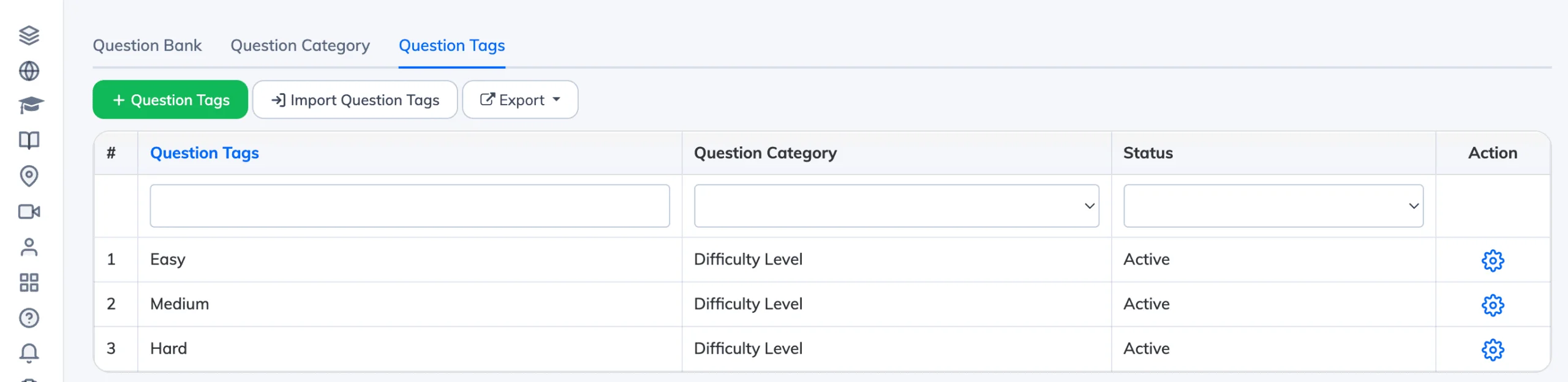
Import Question Tags in Bulk
- Go to the Question Tags tab and click Import Question Tags.
- Click Download Sample CSV, add your tags, then browse and import the file.
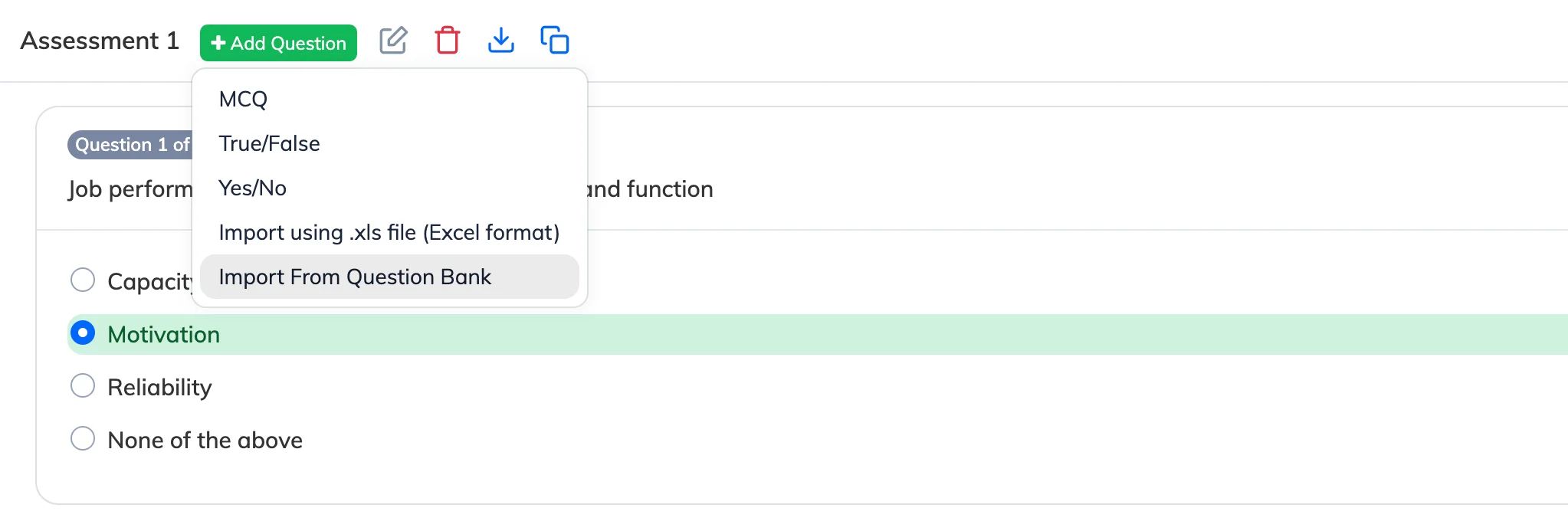
Add Questions from Question Bank to a Quiz
- Open the relevant quiz in a course.
- Click + Add Questions → Import from Question Bank.
- Select the questions and click Add Questions.
Add Questions from Question Bank to an Exam
- Go to Evaluation → Exam and open the relevant exam.
- Click Add Questions from Question Bank at the bottom of the page.
- Select the questions and click Add Questions.
The Question Bank in AlphaLearn LMS is a centralized repository where Administrators and Managers can create and manage questions for quizzes and exams. Questions can be categorized and tagged for better organization, and easily imported into quizzes and exams.
Add questions to the question bank individually:
- Navigate to Evaluation → Question Bank
- Click + Question and select your Question Type
- Fill in the details and click Create
- Supported file types: PNG, JPG, PDF, XLS, XLSX, PPT, PPTX, DOC, DOCX
- Max file size: 10 MB
- You can also choose whether the attachment is mandatory

Import questions to the question bank in bulk:
- Navigate to Evaluation → Question Bank
- Click Import Questions
- Click Download Sample XLSX to get the required file format
- Add your questions to the XLSX file and save it
- Click Browse, select the file, and click Import
Add question categories individually:
- Navigate to Evaluation → Question Bank
- Click the Question Category tab and click + Question Category
- Enter a category name and click Create
Import question categories in bulk:
- Navigate to Evaluation → Question Bank
- Click the Question Category tab and click Import Question Categories
- Click Download Sample CSV, add your categories, and save the file
- Click Browse, select the CSV file, and click Import
Add question tags individually:
- Navigate to Evaluation → Question Bank
- Click the Question Tags tab and click + Question Tags
- Select the relevant Question Category, enter the tag name, and click Create
Import question tags in bulk:
- Navigate to Evaluation → Question Bank
- Click the Question Tags tab and click Import Question Tags
- Click Download Sample CSV, add your tags, and save the file
- Click Browse, select the CSV file, and click Import
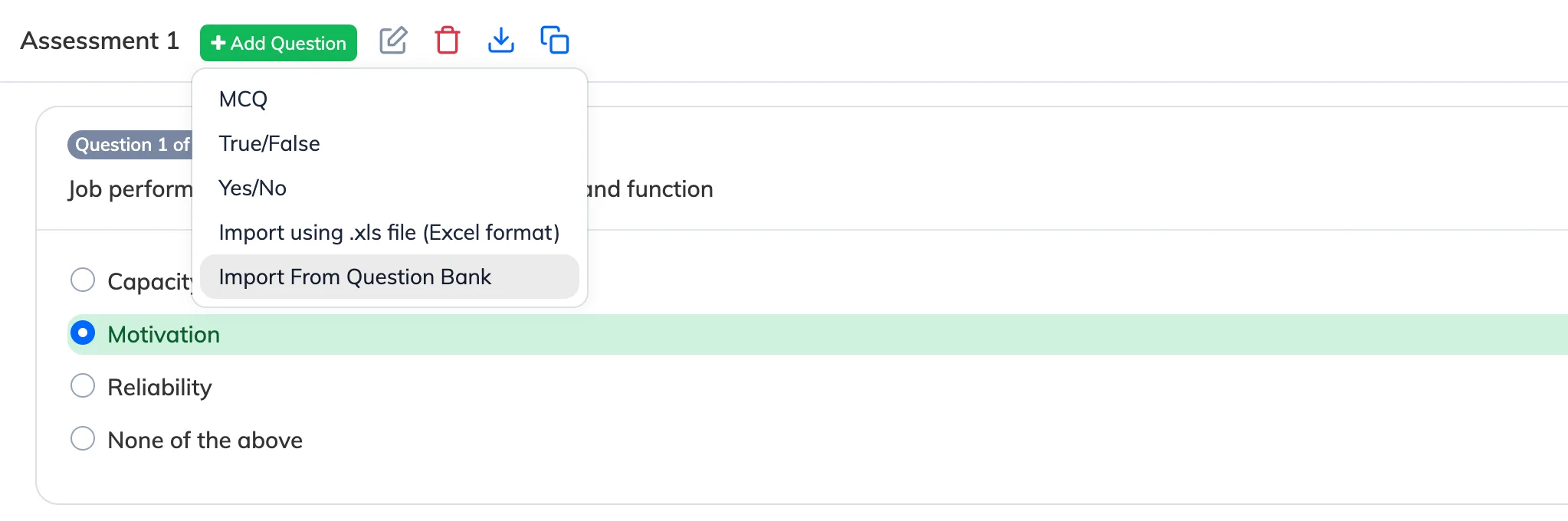
Add questions from the Question Bank to a Quiz:
- Go to the relevant Quiz in a Course or Learning Object
- Click + Add Questions and select Import from Question Bank
- Select the relevant questions and click Add Questions
Add questions from the Question Bank to an Exam:
- Navigate to Evaluation → Exam
- Click the relevant Exam and at the bottom, click Add Questions from Question Bank
- Select the relevant questions and click Add Questions