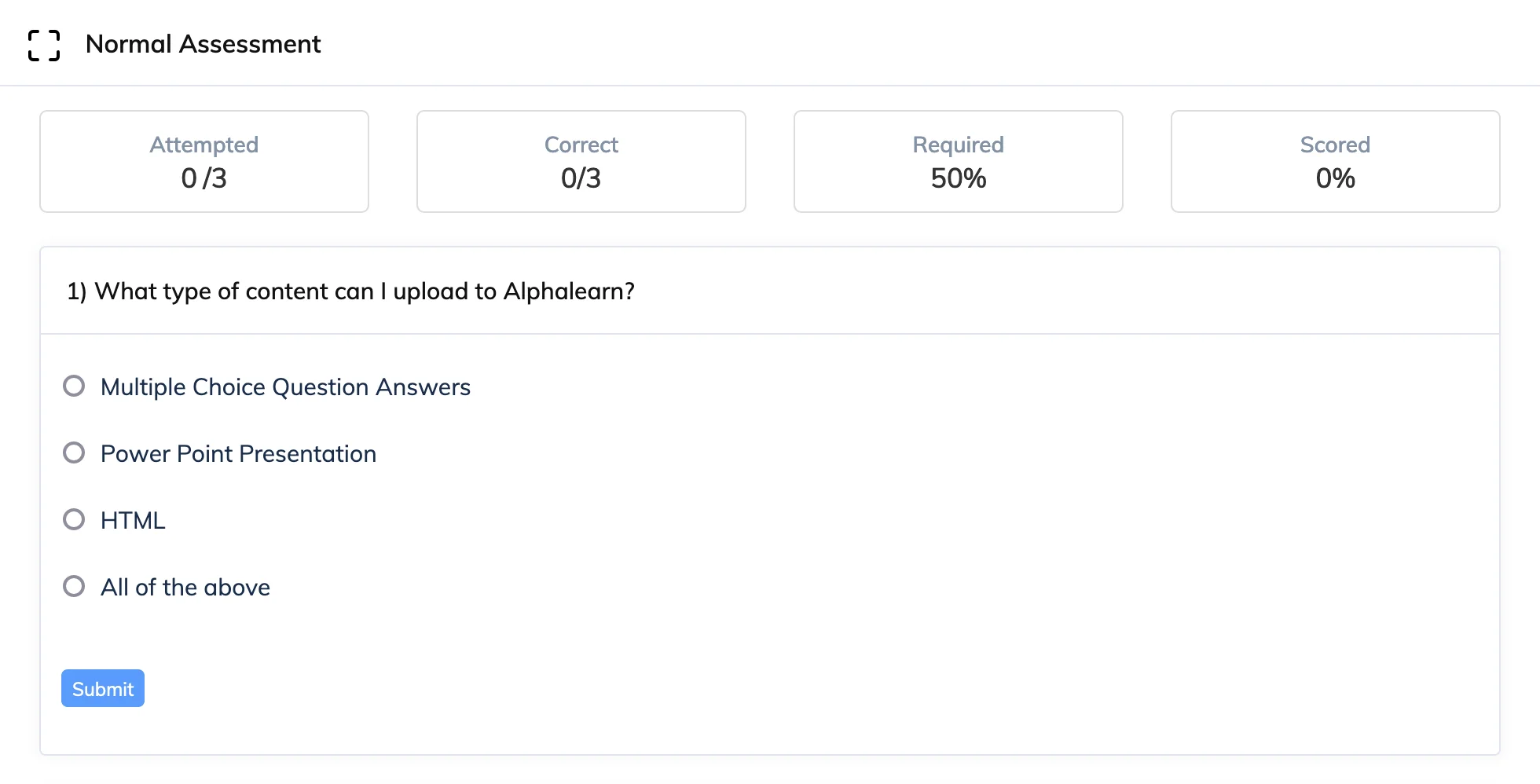
Assessments are MCQ-based content items added to a course module. Choose from three assessment types depending on how you want Trainees to attempt and complete the assessment.
Steps
- Go to Courses → View Courses and open the relevant course.
- Click the chapter or module where you want to add the assessment.
- Click + Add Content and select Assessment.
- Select an assessment type (see below).
- Enter a Title and configure the available options: required passing percentage, shuffle questions and answer options, consider in progress, and display questions one at a time or all at once.
- Click Create.
- Click + Add Question to add questions one at a time, or use Import to bulk upload questions using an Excel file.
Assessment Types
Single Attempt
The Trainee gets one attempt regardless of the passing percentage. The passing percentage is not shown to Trainees. Best suited for pre and post assessments, which can be compared in the Assessment Report to measure progress.
Unlimited Attempts Until Passing Percentage is Achieved
Trainees can re-attempt the assessment as many times as needed until they meet the required passing percentage. The passing percentage is visible to Trainees.
Multiple Attempts Per Question Until Answered Correctly
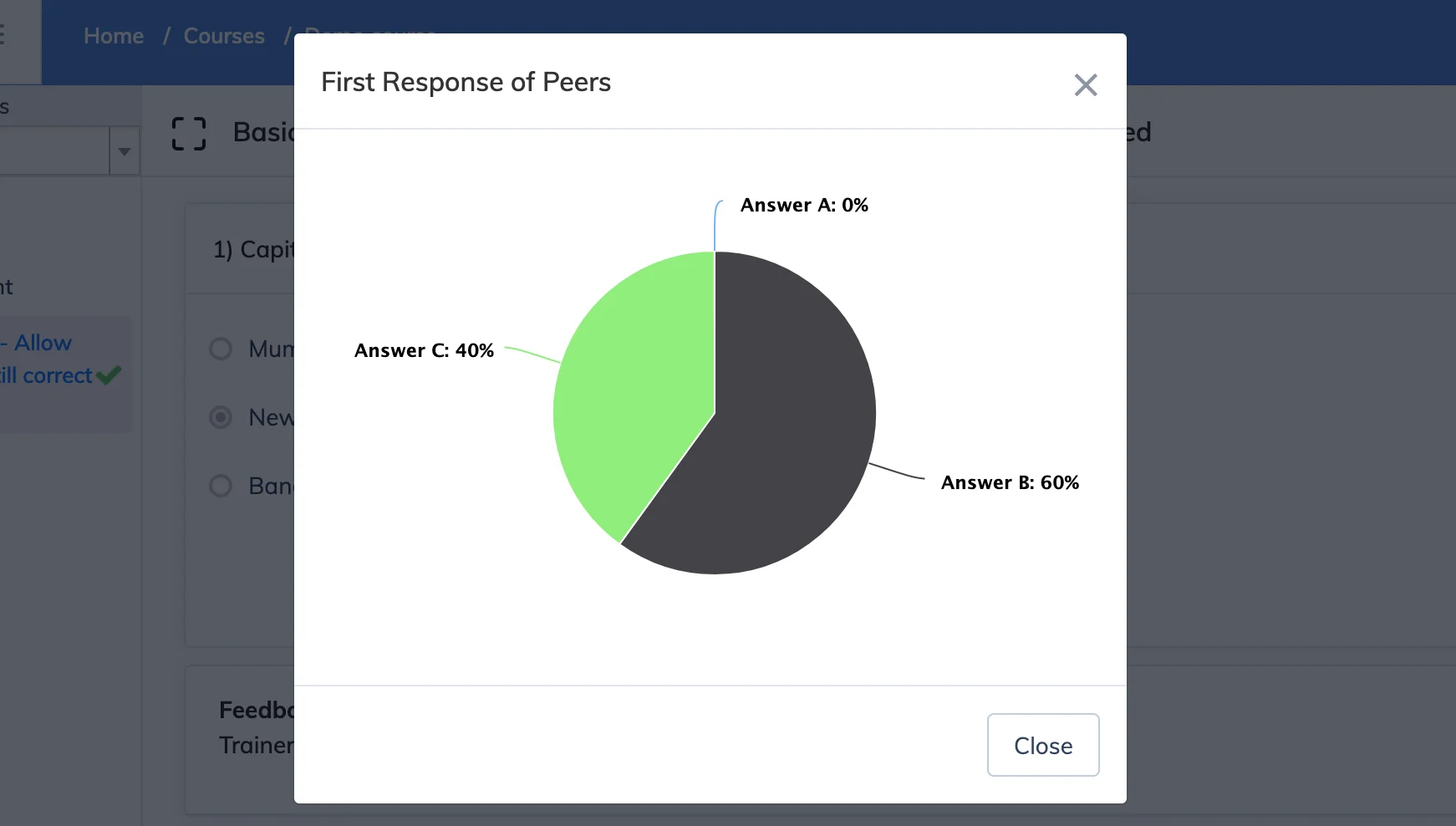
Trainees answer each question repeatedly until they get it right. Individual feedback can be set per answer option and is shown after each attempt. General feedback is shown once the question is answered correctly. After completing the assessment, Trainees can view How Peers Performed to see a graphical breakdown of first responses across the group.