
Course certificates are uploaded as a DOCX template and can be issued automatically or manually on completion. The template supports dynamic variables that are replaced with each trainee’s actual data when a certificate is generated.
Add a Certificate to an Existing Course
- Go to Courses → View Courses and click the Settings icon next to the relevant course.
- Click View Details → Edit and scroll down to expand the Certification section.
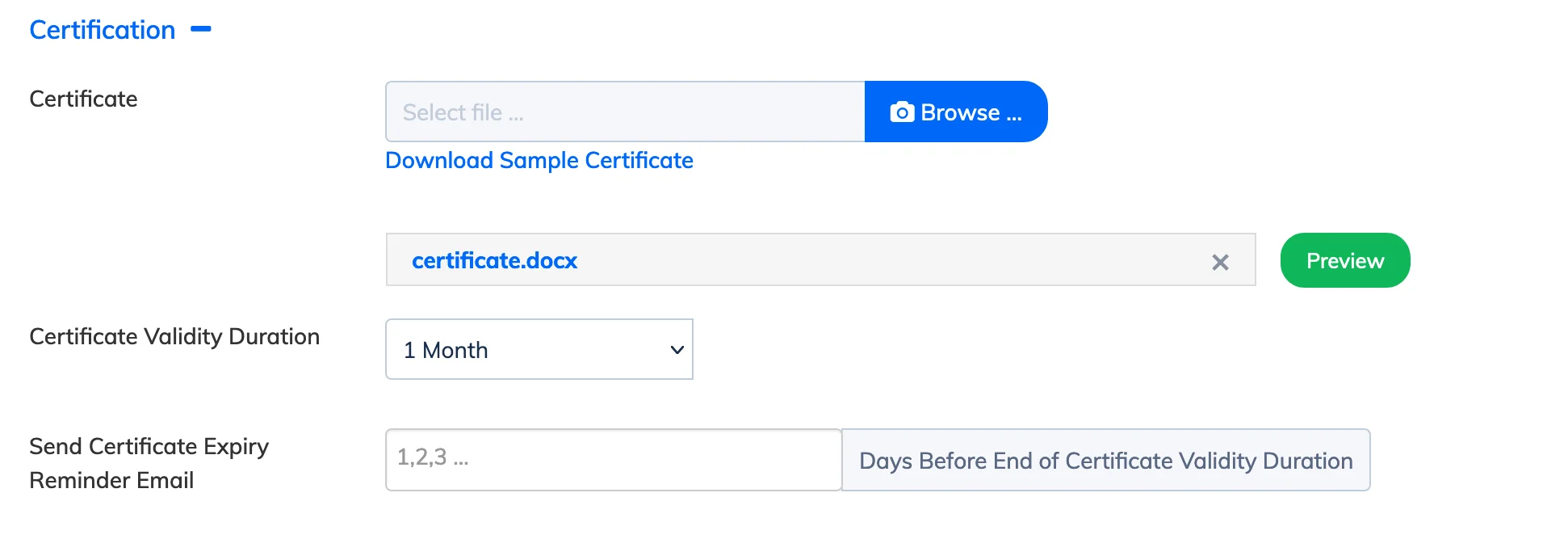
- Next to the Certificate field, click Browse to upload your certificate template in DOCX format. You can also click Download Sample Certificate to use the provided template.
- Optionally, set a Certificate Validity Duration from the dropdown.
- If validity is set, specify the number of days before expiry to send trainees a reminder email.
- Click Submit.
Add a Certificate While Creating a New Course
- Go to Courses → Add Course and fill in the required course details.
- Scroll down to expand the Certification section and follow steps 3-6 above.
Certificate Template Variables
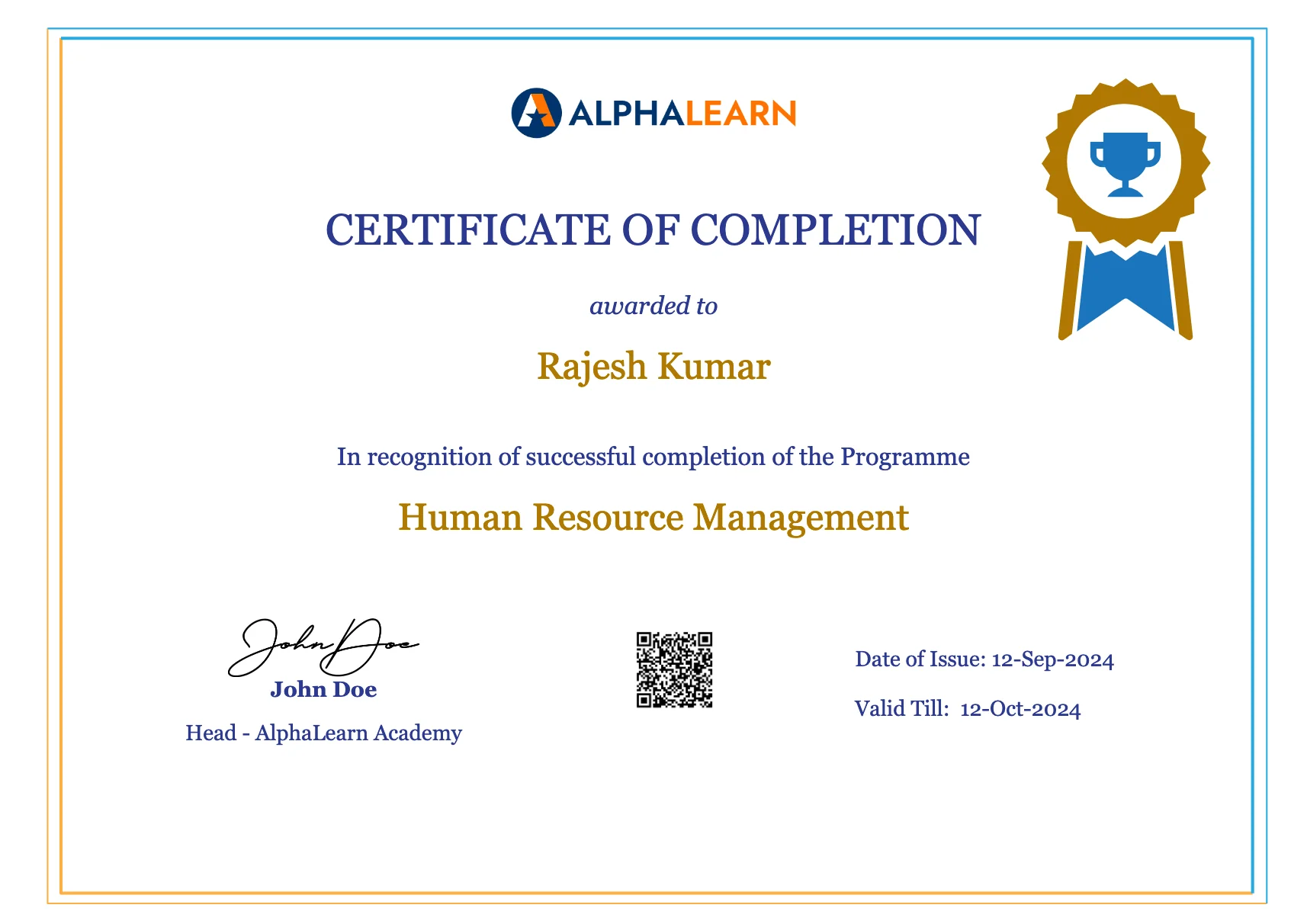
Include any of the following variables in your DOCX template. Each variable is replaced automatically with the trainee’s data when the certificate is issued.
| Variable | Replaced with |
|---|---|
| CERT_NAME | Full name of the trainee |
| TRAINEE_UNIQUE_ID | Unique ID assigned to the trainee in the LMS |
| CERT_COURSE | Name of the course for which the certificate is issued |
| CERT_DATE | Date the certificate was issued |
| CERT_EXPIRY | Date the certificate expires (only populated if a validity duration is set on the course) |
| QRCODE | A scannable QR code that links to the certificate verification page, confirming the certificate’s authenticity |
Tip: Type the variable exactly as shown above, including capitalisation, directly in your DOCX template. The system replaces each variable at the time of certificate generation.
Preview the Certificate
- Go to Courses → View Courses and click the Settings icon next to the relevant course.
- Click View Details → Edit and expand the Certification section.
- Click Preview to see a sample of the certificate with placeholder values.
Verify a Certificate
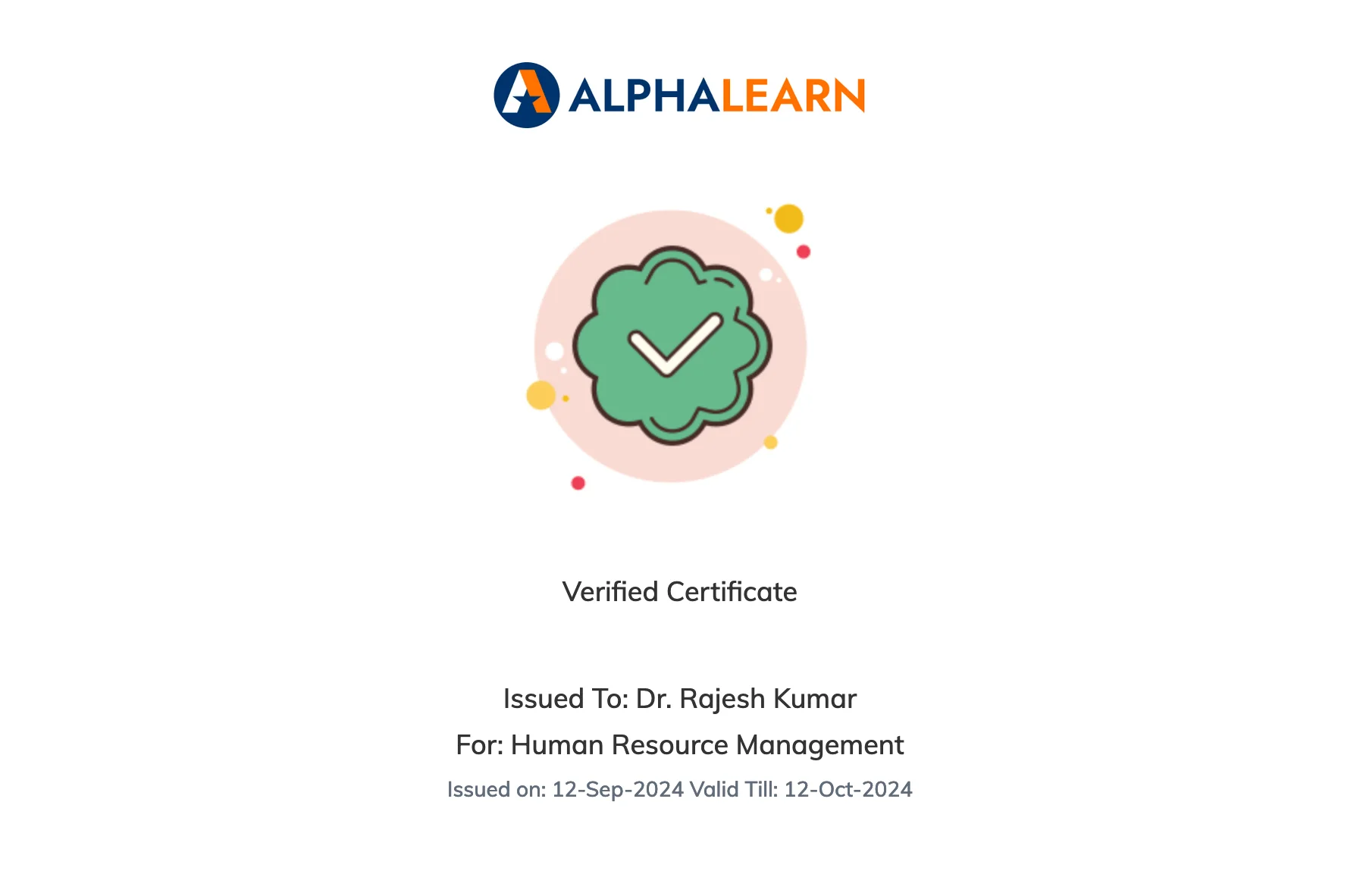
Scan the QR code on any issued certificate to open the verification page, where you can confirm the trainee’s name, course, issue date, and expiry date, and check that the certificate is genuine.
Next steps: Once the certificate template is in place, you can issue certificates automatically on course completion or issue them manually to individual trainees. You can also issue certificates for classroom sessions.