
Quiz is the all-in-one assessment engine in AlphaLearn. It supports MCQ, True/False, Yes/No, and Subjective questions, with options for self-paced or time-barred delivery and two quiz types – Practice and Mastery.
Quick Start
- Open the relevant course and module, click + Add Content, and select Quiz.
- Complete the 4-step wizard and save.
Step cards are clickable. Moving forward requires the current step to be valid. In Edit mode, the wizard opens directly on Step 4 (Review).
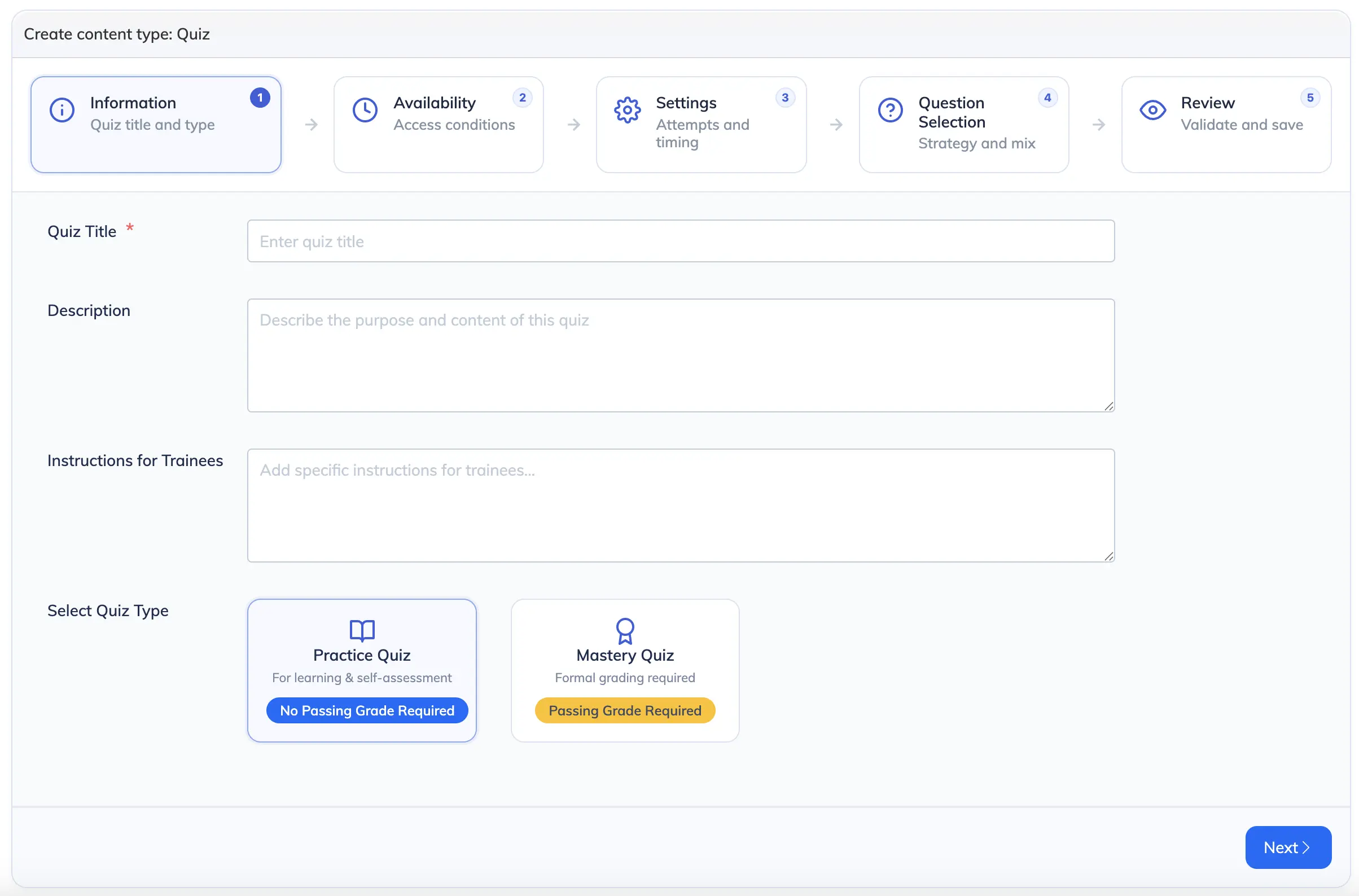
Step 1: Info
- Quiz Title – required.
- Quiz Type:
- Practice – Learning-oriented; no passing percentage required. Subjective questions are not available.
- Mastery – Pass/fail; passing percentage required. Supports all question types including Subjective.
Note: If a Mastery quiz contains Subjective questions, the quiz type is locked and cannot be changed to Practice. Subjective questions require manual evaluation by a Trainer. Learn more about Quiz Evaluation.
Step 2: Settings
- Shuffle Questions & Options – Randomise question order and answer choices on each attempt.
- Show Correct Answers After Attempt – Let Trainees review correct answers after submitting.
- Time-Barred Quiz – Set a maximum duration for completing the quiz.
- Consider In Progress – Mark the quiz as in progress when a Trainee starts but has not submitted.
- Notify Trainer When Evaluation is Pending – Sends a notification when a Mastery quiz is submitted and requires manual evaluation. Not available for Practice quizzes.
- Unlimited Attempts – Allow unlimited retakes or set a fixed attempt limit.
Note: For Mastery quizzes, Unlimited Attempts stops applying once a Trainee passes – the Retake Quiz button disappears at that point, even with unlimited attempts enabled. For unlimited retakes regardless of pass status, use a Practice quiz instead.
Step 3: Questions
Add questions manually or import from the Question Bank. Once questions are added, select a delivery strategy:
- All Questions – Every question in the quiz is served.
- Random – A fixed number of questions are selected randomly on each attempt.
- Smart – Questions are distributed proportionally by category and tag mix.
Tip: Random and Smart strategies are only available after questions have been added to the quiz.
- Negative Marking – Optional; value must be between 0 and 1.
Step 4: Review
Review a summary of all settings before saving. Confirm to publish the quiz.
Import Questions from Question Bank
- Open the quiz and click Add Question → Import From Question Bank.
- Filter and select questions, then click Add Questions and confirm.
Note: Questions already in the quiz are excluded from the import list. Subjective questions can only be imported into Mastery quizzes. Imported questions remain linked to their Question Bank records.
Troubleshooting
- Random/Smart options not available – Add or import questions first; these strategies only appear once questions exist.
- No questions shown in Question Bank import – Check your filters; questions already in the quiz are hidden.
- Cannot import Subjective questions – Only available in Mastery quizzes. Switch the quiz type if needed.
- Notify Trainer not clickable – Not applicable to Practice quizzes.
- Mastery quiz not saving – Ensure a valid passing percentage is set.
Related Article
See the Quiz Report to review learner performance on your quizzes, filter results by module or enrollment status, and compare pre- and post-training scores.