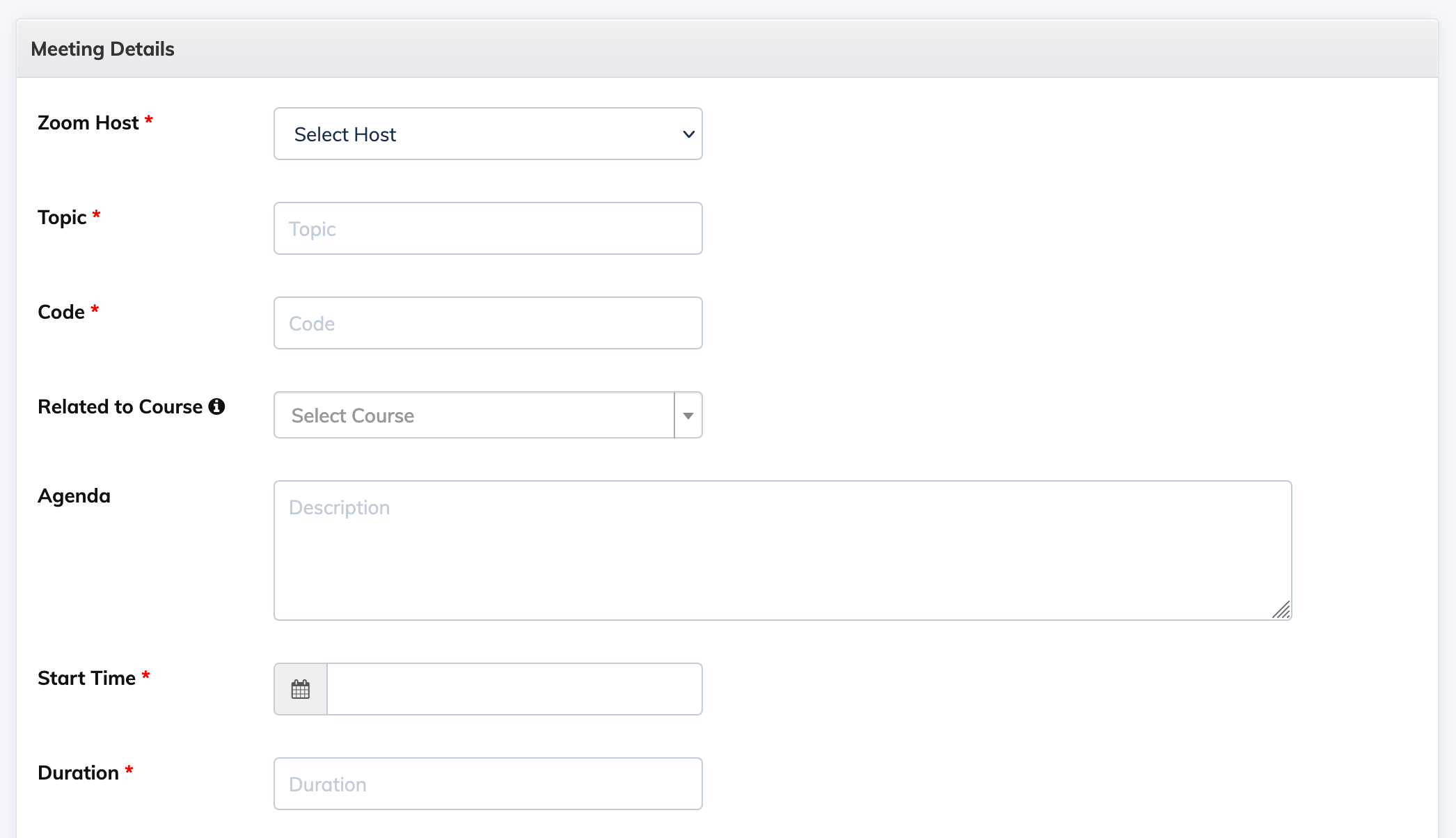
To create a Zoom Meeting from AlphaLearn LMS, you have to subscribe to Zoom and then integrate Zoom with AlphaLearn LMS.
To Create a Zoom Meeting using AlphaLearn:
- Click Webinars/Meetings -> Zoom Meetings -> + Meeting and add the necessary details to create a Zoom Meeting.
- While adding the details of your meeting, if it is related to any existing Course, you can select it from Related to Course section. Trainees enrolled to this course, will see Upcoming Meeting details in their Courses.
To record a Zoom meeting:
- While creating a Zoom meeting, in the Auto Recording section, select the option On Cloud. Then you can enable or disable the option to Display the meeting recording to Trainees. When this is enabled, Trainees can view the Zoom meeting recording in their Concluded meetings section.
To Send a Reminder Email Before the Session:
When creating a Zoom meeting, navigate to the Send Reminder Email option. You can choose one or both of the following reminders:
- 1 Day Before Event
- 1 Hour Before Event
These reminders will automatically be sent to participants to ensure they attend the session.
To Send Email Reminders to Absent Trainees:
When creating a Zoom meeting, enable the option Send email reminders to absent Trainees. This will automatically send reminders to Trainees who missed the session.
To Automatically transfer the Zoom Meeting recording to a Course Module:
- While creating a Zoom meeting, select the relevant course in the Related to Course section. Then in the Auto Recording section, select the option On Cloud. Finally in the section Select Module to Auto Transfer Recording, select the relevant course module to automatically transfer the recording once available.
- Note: This feature is only available to Non-Sequential courses. It is not available for Sequential courses.
To Enroll Trainees to a Zoom Meeting:
- Once you have created a Zoom Meeting, click on Webinars/Meetings -> Zoom Meetings
- Click on the Settings icon next to the relevant Meeting and click Enroll Trainees. You will be able to view the currently enrolled Trainees if any.
- Click + Enroll New and select the Trainees you would like to Enroll to the Meeting. Once enrolled, based on your selection the Trainees will receive an email with the details of the Zoom Meeting.
To join a Zoom Meeting as Host:
- Click on Webinars/Meetings and Zoom Meetings on the navigation bar.
- Then you will see the list of all Zoom Meetings. Click on the relevant Meeting and click on the Host URL to join as the host.
To join a Zoom Meeting as Trainee:
- Log in to AlphaLearn LMS as a Trainee and click on Webinars/Meetings and click the Join icon.
To View the Attendance Report:
- Go to the navigation bar and click Webinars/Meetings, then select Zoom Meeting.
- Click on the Concluded tab to view the list of completed meetings.
- Next, click the Settings icon next to the relevant session and select Attendance.
- Use the filter options to view participants marked as Present or Absent.
To Disable a Zoom Meeting:
- Click the Settings icon next to the Zoom Meeting and click Disable Meeting.
To Delete a Zoom Meeting:
- Click the Settings icon next to the Zoom Meeting and click Delete Meeting.