Before creating GoToWebinar sessions in AlphaLearn, you must integrate GoToWebinar with AlphaLearn LMS.
Create a Webinar
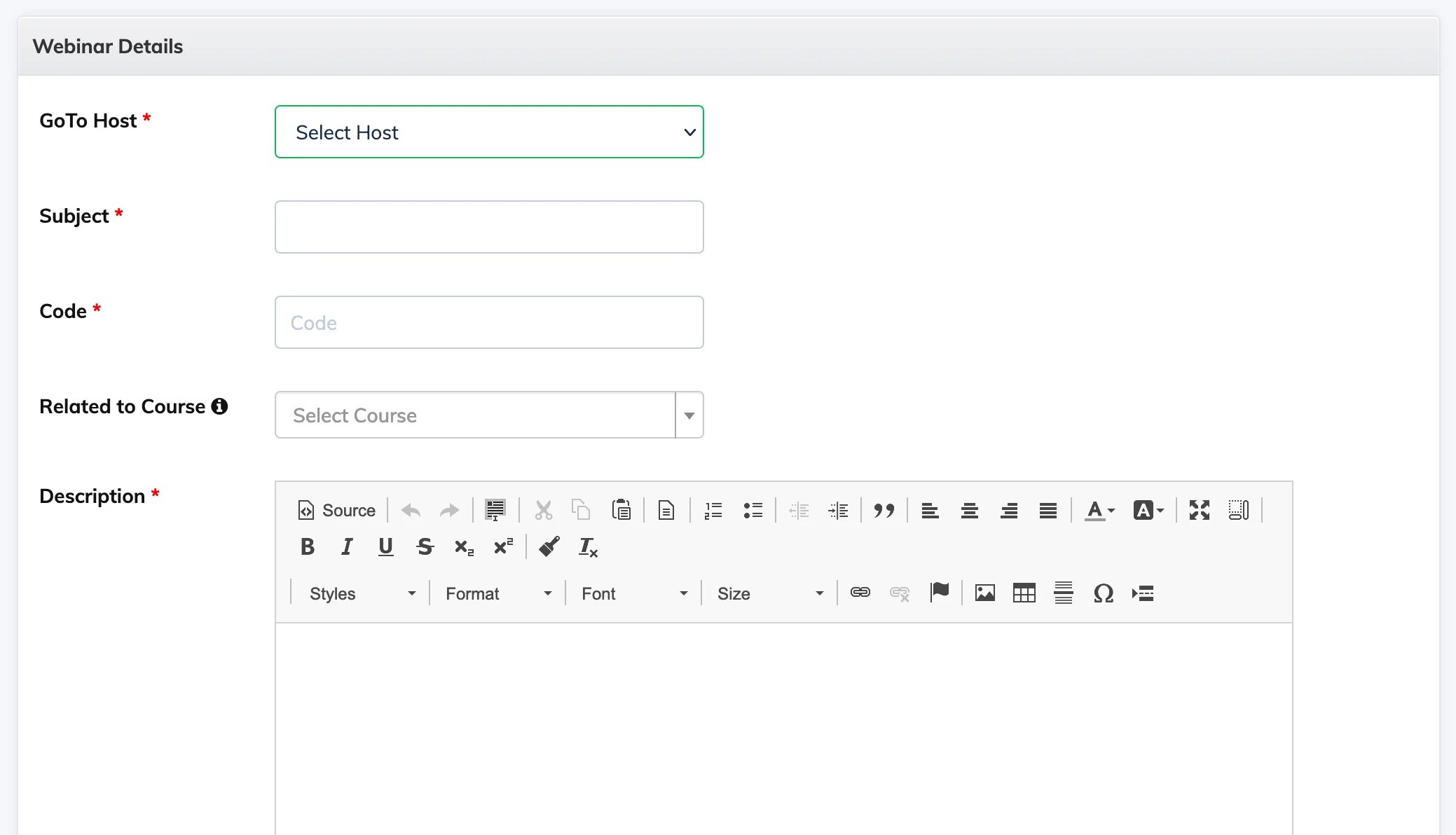
- Go to Webinars → GoToWebinar → + Webinar and fill in the required details.
- If you choose to save the recording to the cloud, you can allow or restrict Trainees from viewing the recording after the webinar concludes. This option appears under the webinar’s Settings menu once the recording is available.
Enroll Trainees
- Click the Settings icon next to the webinar and select Enroll Trainees.
- Click + Enroll New, select the Trainees, and confirm enrollment.
- Enrolled Trainees will receive an email with the webinar details.
Join as Host
- Click the Settings icon next to the webinar and copy the Host URL. Panellists can use the Panelist Join URL.
- Use the Host URL at the scheduled time to start the session.
For Trainees: Trainees can join by going to Webinars / Meetings → clicking the Join icon next to the session.
Issue a Certificate
- Click the Settings icon next to the webinar and select Issue Certificate.
- Select the Trainees from the list and click Issue Certificate for Selected Users.
Disable or Delete a Webinar
- Disable – click the Settings icon next to the webinar and select Disable Webinar.
- Delete – click the Settings icon next to the webinar and select Delete Webinar.