Assignments are question-based content items that support both MCQ and subjective (open-ended) questions. MCQ answers are scored automatically, while subjective answers require manual evaluation by a trainer or manager.
Assignments are added at the module level. A module cannot contain other content alongside an assignment – add it in a dedicated module.
Steps
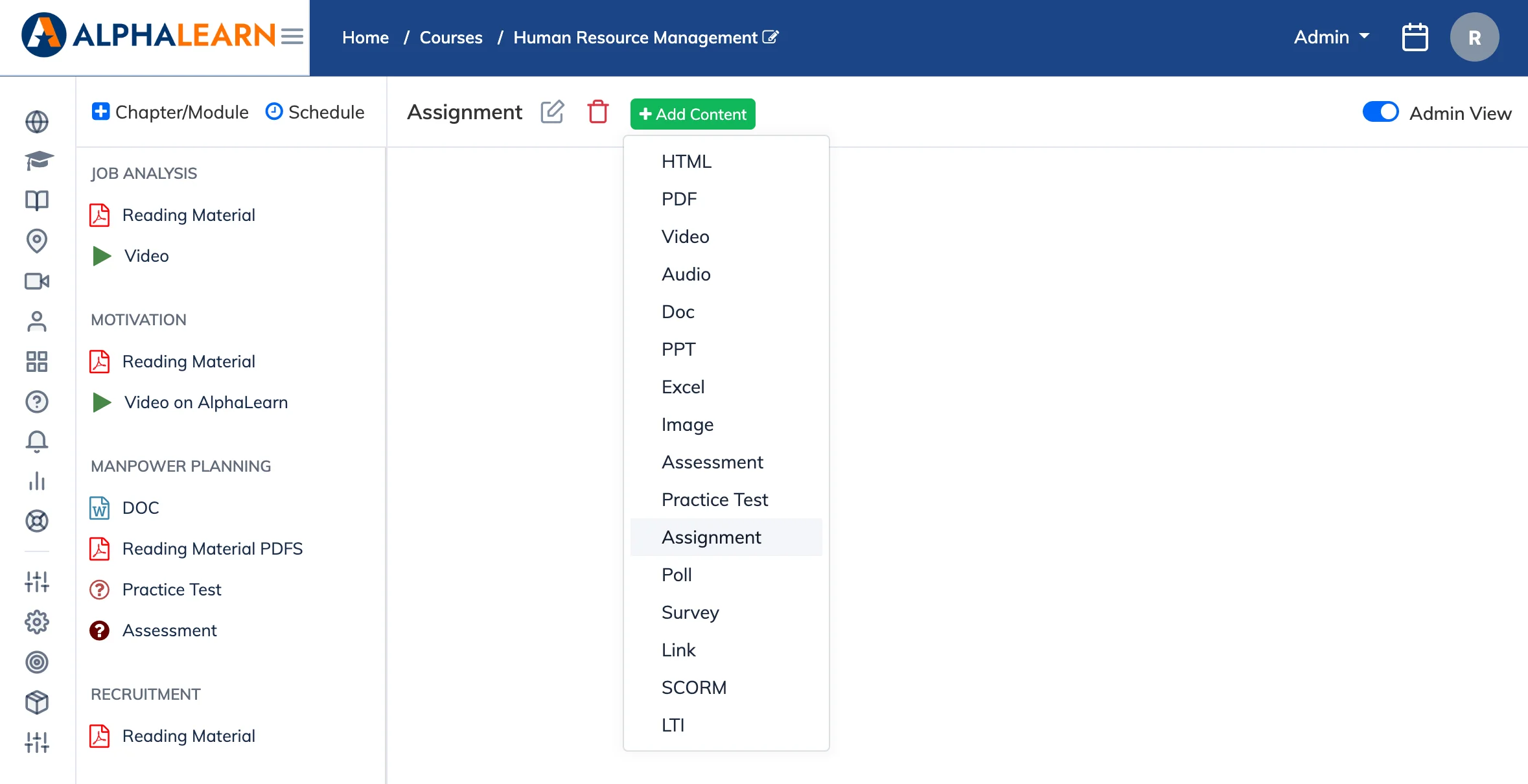
- Go to Courses → View Courses and open the relevant course.
- Click the module where you want to add the assignment. If the module already has content, create a new module.
- Click + Add Content and select Assignment.
- Configure the assignment settings (see below) and click Create.
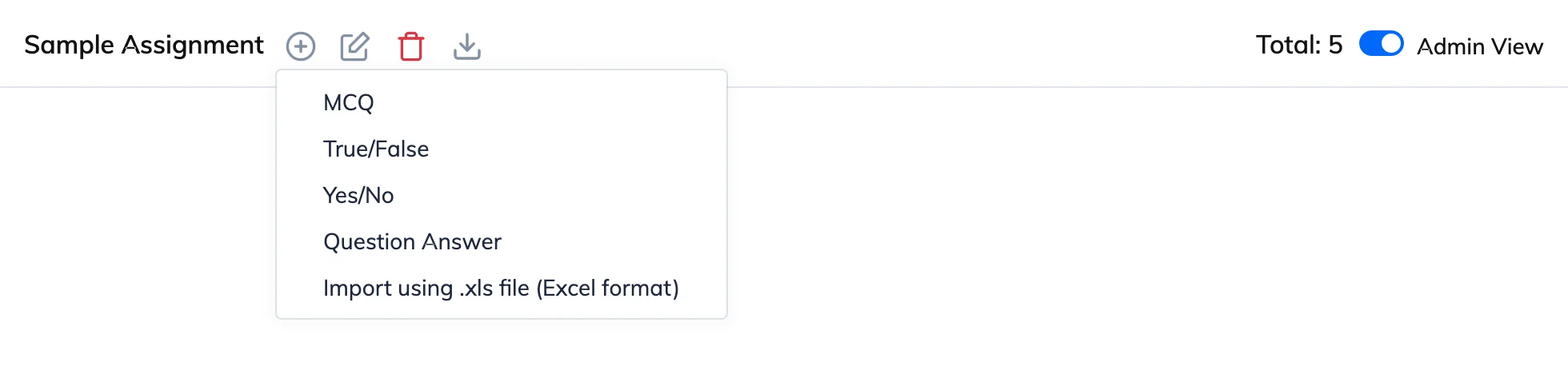
- Add questions one at a time. Supported question types: MCQ, True/False, Yes/No, and open-ended.
Assignment Settings
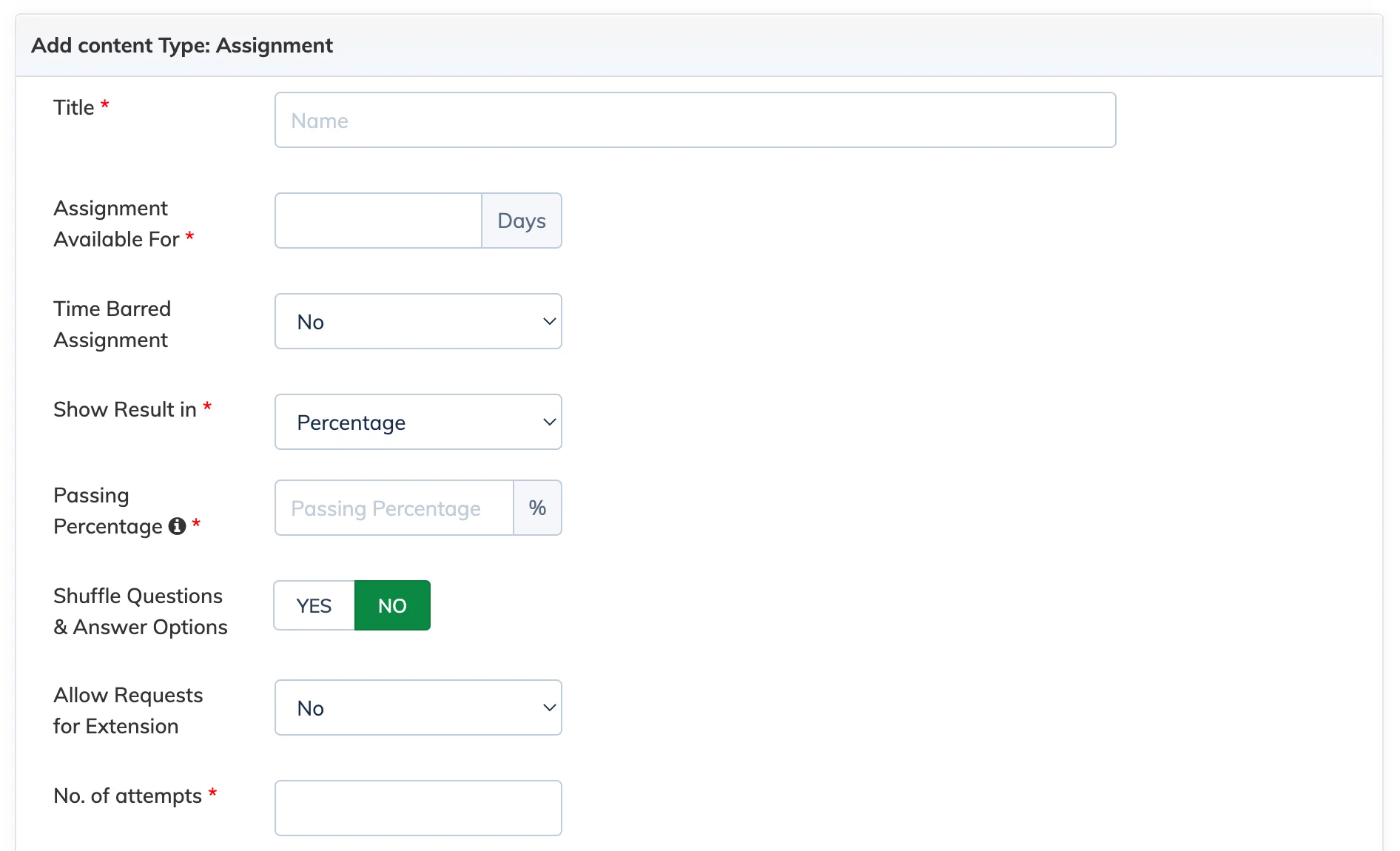
- Title: Name of the assignment.
- Assignment Available For: Number of days the assignment remains available to Trainees.
- Time Barred: Set a time limit for completing the assignment.
- Show Result In: Display the result as Percentage, Marks, or Grade.
- Passing Percentage: If set, the assignment is considered complete only when the Trainee meets this score.
- Shuffle Questions & Answer Options: Randomises the order of questions and answer options for each attempt.
- Allow Requests for Extension: Allow Trainees to request an extension after the due date has passed.
- No. of Attempts: Number of times a Trainee can re-attempt the assignment.
- Assignment Type: Manual – allocate to each Trainee individually. Automated – allocated automatically based on Trainee progress.
- Display Correct Answer for MCQ After Attempting: Show or hide the correct answers after the Trainee submits.