
When a Trainee submits a Mastery quiz containing subjective questions, the submission appears in the Quiz Evaluation section for manual review and scoring.
Tip: Enable Notify Trainer When Evaluation is Pending in the quiz settings to receive an email notification when a submission is ready for evaluation.
Access Quiz Evaluation
- Go to Evaluation → Quiz Evaluation.
- Select the relevant course to view its quizzes.
- Each quiz shows the count of Evaluated and Pending submissions.
Evaluate a Submission
- Click the Pending count for the relevant quiz.
- Click Evaluate next to a Trainee’s attempt.
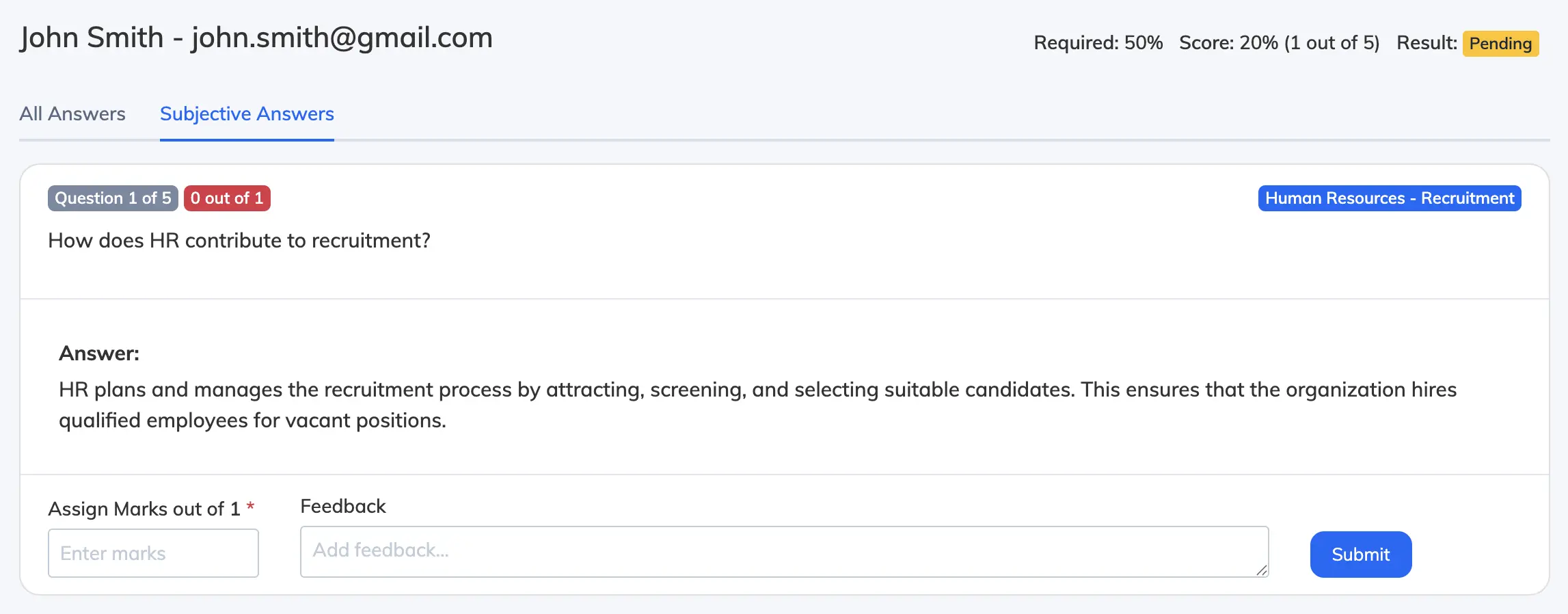
- Open the Subjective Answers tab to review responses and any attachments.
- Assign marks, add feedback, and click Submit for each answer.
- Once all answers are evaluated, click Submit Evaluation to finalise the result. The Trainee is notified automatically.
Multiple Attempts
If multiple attempts are allowed, Trainees can re-attempt the quiz after failing. Each attempt requiring evaluation appears separately in the Quiz Evaluation section.
Notes
- Trainees can view their MCQ results immediately after submission. Subjective question results remain pending until evaluation is completed.
- Quiz results are only finalised after the Trainer submits the evaluation.