
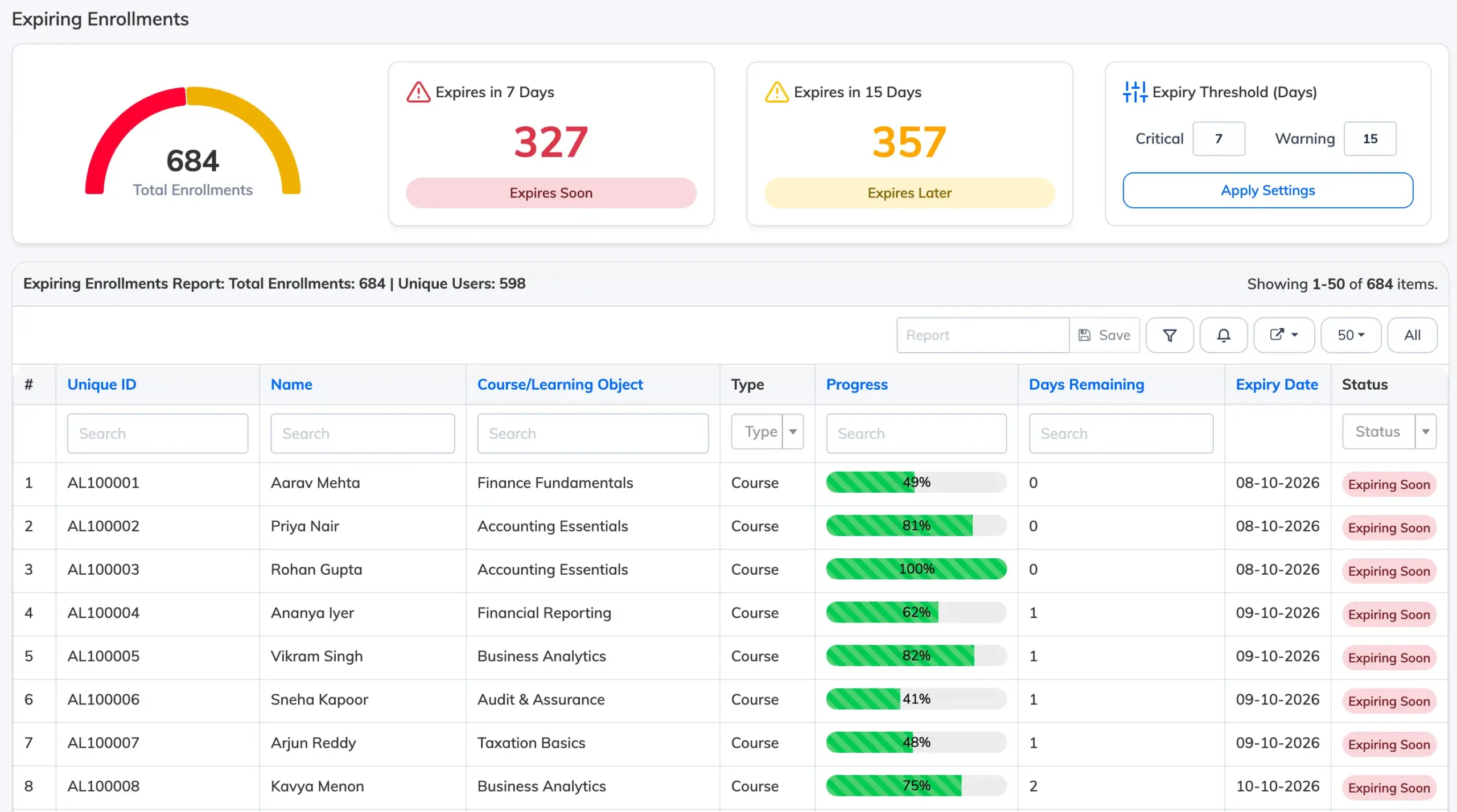
The Expiring Enrollments Report shows every enrollment that is approaching its expiry date, so admins can follow up with Trainees before course access is lost. Enrollments are flagged as Expiring Soon or Expires Later based on a configurable day threshold.
View the Report
- Go to Reports → Expiring Enrollments.
- The gauge at the top shows the total number of enrollments expiring within the configured window, split between Expiring Soon (critical) and Expires Later (warning).
- Use the Search and Type filters above each column, or the Status filter, to narrow the list.
Set the Expiry Threshold
The Expiry Threshold controls how many days in advance an enrollment is flagged, and whether it is marked critical or warning.
- Enter the number of days for Critical (shown as Expires in X Days / Expiring Soon) and Warning (shown as Expires in X Days / Expires Later).
- Click Apply Settings to update the report with the new thresholds.
Report Columns
- Unique ID: the Trainee’s unique identifier.
- Name: the Trainee’s name.
- Course/Learning Object: the course or learning object the enrollment belongs to.
- Type: whether the enrollment is for a Course or a Learning Object.
- Progress: the Trainee’s current completion percentage.
- Days Remaining: the number of days left before the enrollment expires.
- Expiry Date: the date the enrollment will end.
- Status: Expiring Soon or Expires Later, based on the configured threshold.
Additional columns like Branch, Department, Designation, etc. can be added by clicking the Column Filter icon, if required.
Export and Save
- Click the export icon to download the report.
- Click the bell icon to set up an alert, or use the Save option to save the report for later. Saved reports are accessible under Reports → Saved Reports – see Save/Schedule Report for scheduling automatic email delivery.
- Click the Send Announcement icon to send an announcement directly to the Trainees listed in the report.