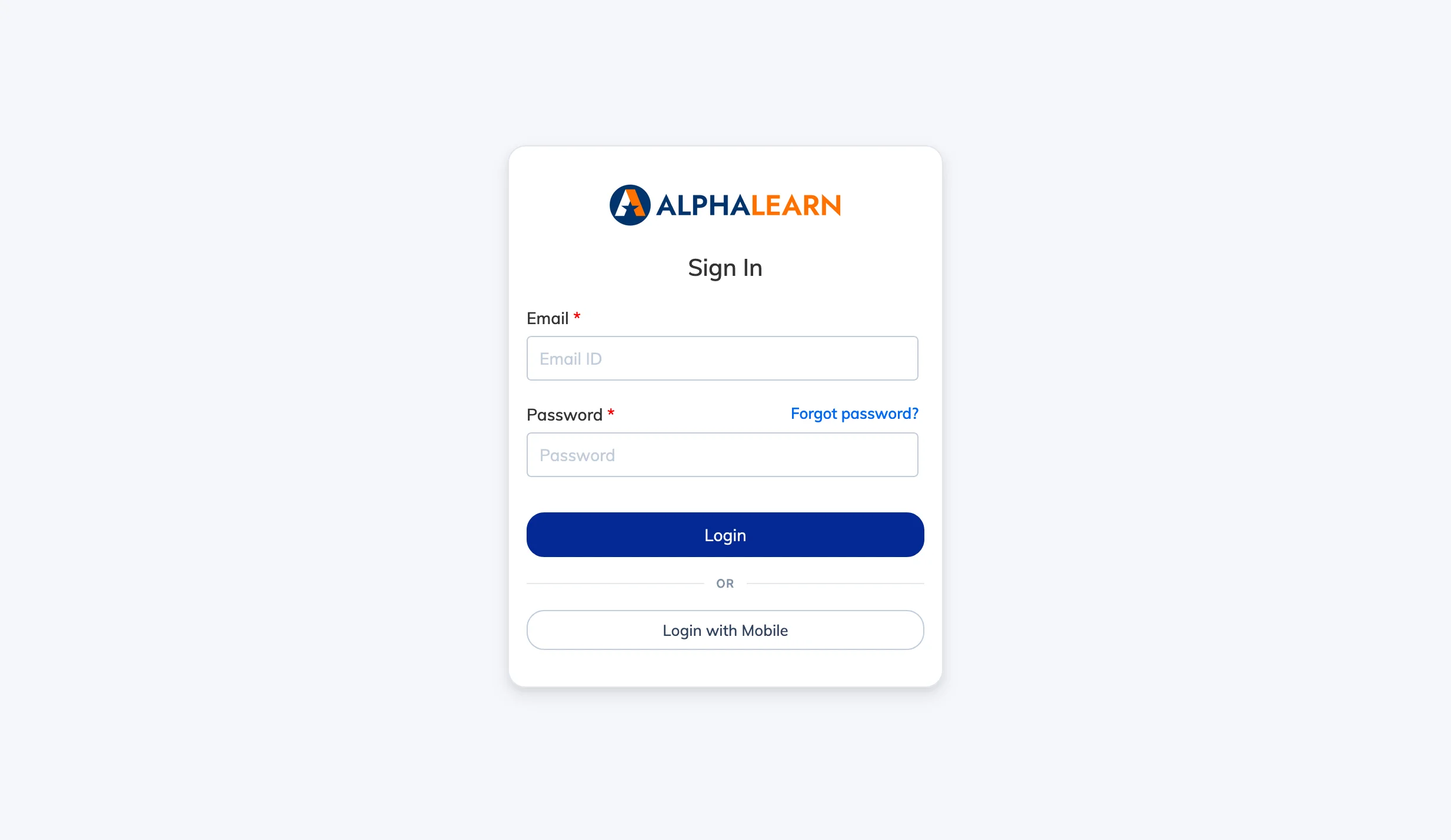
Integrating with an SMS provider enables your users to log in using a mobile OTP (one-time password) instead of a password. AlphaLearn currently supports MSG91 as the SMS provider.
Step 1: Set Up Your MSG91 Account
- Sign up at msg91.com.
- In the MSG91 dashboard, configure your Sender Name and OTP Template.
- Generate your Auth Key – you will need this in the next step.
DLT Registration: Before configuring MSG91, you must complete DLT (Distributed Ledger Technology) registration as mandated by TRAI. Register your entity, sender name, and SMS template on a DLT platform. MSG91’s DLT registration guide walks you through the process.
Step 2: Configure SMS Integration in AlphaLearn
- Go to Integrations → SMS.
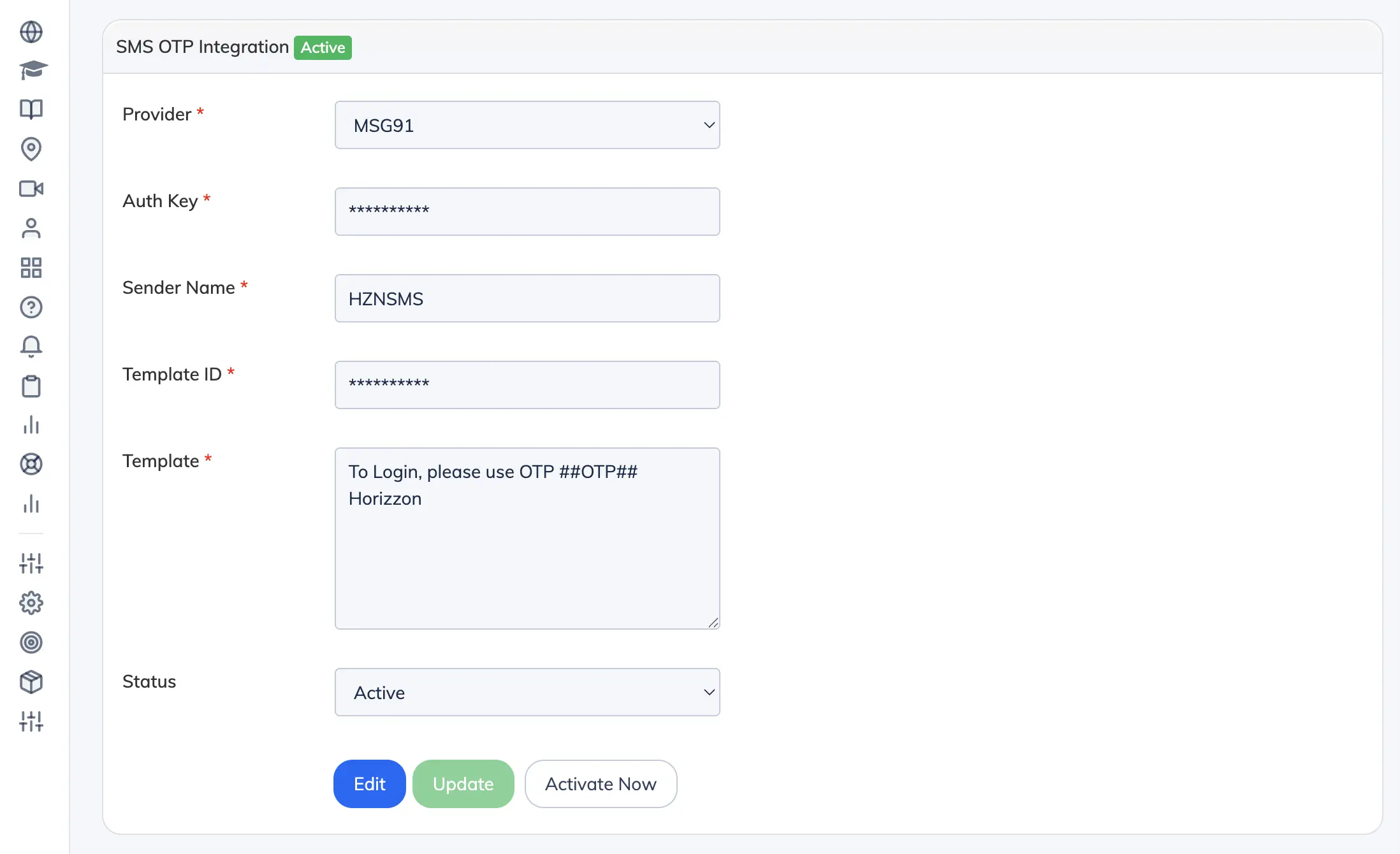
- Select your SMS Provider and enter the required details: Auth Key, Sender Name, and Template.
- Click Submit. The integration status will initially show as Disabled.
- Click Send Test OTP to verify the setup.
- If the test OTP is received successfully, the integration status will change to Active.
Step 3: Users Can Now Log In with Mobile OTP
Once the integration is active, a Login with Mobile option appears automatically on:
- Your LMS web portal (e.g.,
company.alphalearn.com) - The AlphaLearn mobile app (Android and iOS)
Users enter their registered mobile number, receive an OTP via SMS, and log in – no password required.