Integrating with Zoho People automatically provisions and updates learner accounts in AlphaLearn based on your HR records. When employees are added, updated, or deactivated in Zoho People, those changes sync to the LMS – eliminating manual user management and keeping your training roster in sync with HR.
Step 1: Connect and Authorise Zoho People
- Go to Integrations → Zoho People.
- Click Connect and authorise with your Zoho account.
- Once authorised, the integration status changes to Connected.
Step 2: Configure Field Mapping
- Open the Field Mapping tab.
- Map Zoho People fields to their corresponding LMS fields. The following LMS fields are mandatory:
fname– First Namelname– Last Nameemail– Email
- Click Save Mapping.
Step 3: Run a Sync
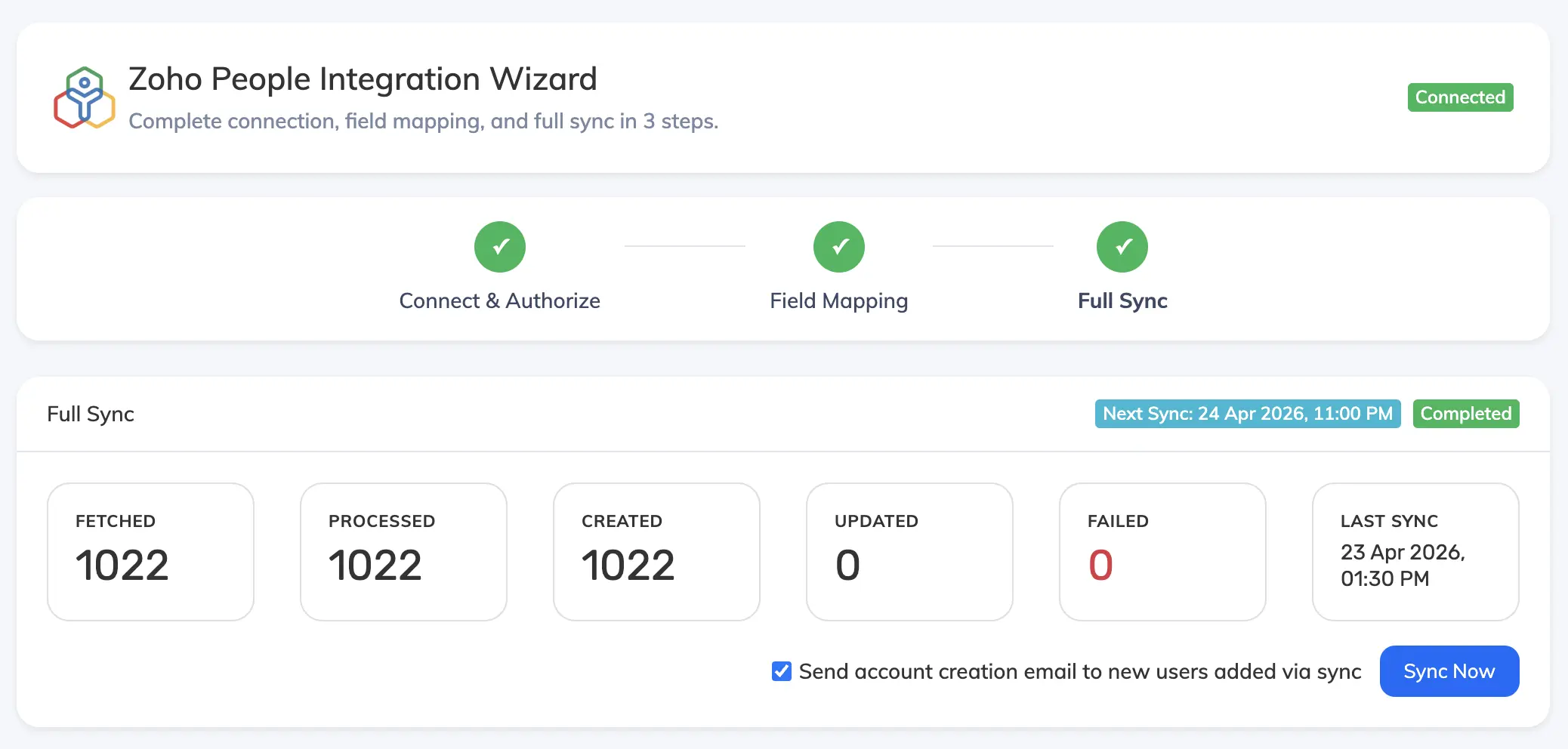
- Go to the Full Sync tab and click Sync Now.
- The first run performs a Full Sync of all employees. Subsequent Sync Now runs perform a delta sync based on the last successful sync time.
- Review the sync metrics: Fetched, Processed, Created, Updated, Failed.
- Check the error list for any failed rows and resolve them before the next sync.
Automated sync: AlphaLearn runs a daily sync automatically via the system scheduler – no manual action is needed after the initial setup. Account creation emails are sent to new users only if Send account creation email to new users added via sync is checked.
Troubleshooting
User not updated after sync
Check the sync summary error list for that user’s email address to see the specific failure reason.
Duplicate departments or designations
Compare the source text in Zoho People for hidden characters or trailing spaces – these cause values to be treated as different entries.
User status not updated
Verify the user was matched as an existing record and that the row did not fail or roll back in the sync summary.