Before creating Zoom meetings in AlphaLearn, you must integrate Zoom with AlphaLearn LMS. An active Zoom subscription is required.
Create a Zoom Meeting
- Go to Webinars / Meetings → Zoom Meetings → + Meeting.
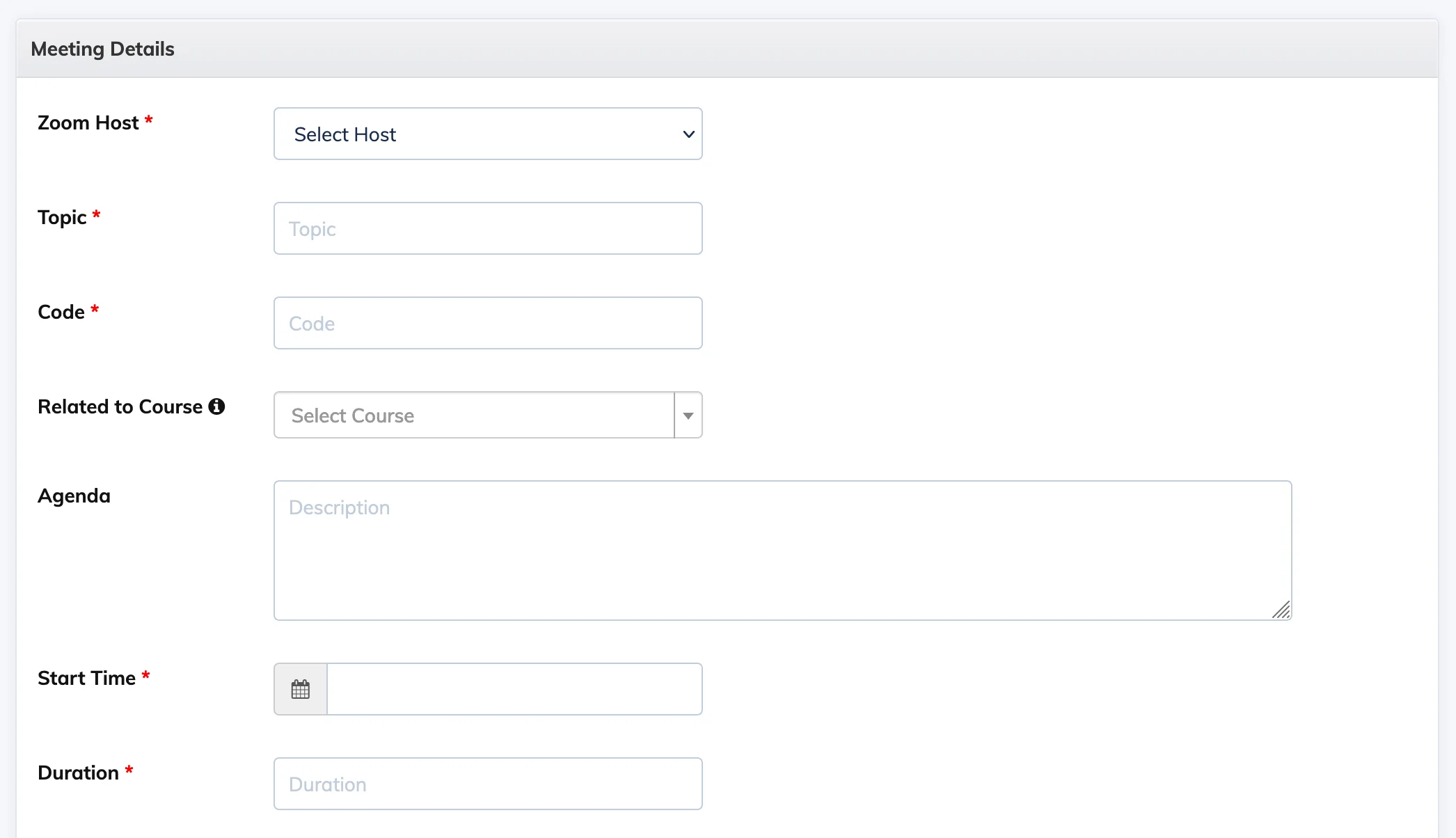
- Fill in the meeting details. If the meeting is related to an existing course, select it under Related to Course – enrolled Trainees will see the upcoming meeting in their course view.
Record a Meeting
In the Auto Recording section, select On Cloud to record the session. Toggle Display the meeting recording to Trainees to control whether Trainees can view the recording in their Concluded meetings section.
Auto-Transfer Recording to a Course Module
Select a course under Related to Course, set Auto Recording to On Cloud, and select a module under Select Module to Auto Transfer Recording. Once the recording is available, it will be added to that module automatically.
Note: Auto-transfer of recordings is only available for non-sequential courses.
Send Reminders
- Before the session – enable Send Reminder Email and choose 1 Day Before, 1 Hour Before, or both. Reminders are sent automatically to all enrolled Trainees.
- After the session (for absent Trainees) – enable Send email reminders to absent Trainees to automatically follow up with those who missed the session.
Enroll Trainees
- Go to Webinars / Meetings → Zoom Meetings.
- Click the Settings icon next to the relevant meeting and select Enroll Trainees.
- Click + Enroll New, select the Trainees, and confirm. Enrolled Trainees will receive an email with the meeting details.
Join a Meeting
- As Host – go to Webinars / Meetings → Zoom Meetings, click the relevant meeting, and click the Host URL.
- As Trainee – log in as a Trainee, go to Webinars / Meetings, and click the Join icon next to the session.
View Attendance Report
- Go to Webinars / Meetings → Zoom Meetings → Concluded tab.
- Click the Settings icon next to the relevant session and select Attendance.
- Filter by Present or Absent to review participation.
Disable or Delete a Meeting
- Disable – click the Settings icon next to the meeting and select Disable Meeting.
- Delete – click the Settings icon next to the meeting and select Delete Meeting.