
Forms let you collect data, run surveys, and gather feedback from Trainees. Use branching logic to show or hide questions based on responses.
Create a Form
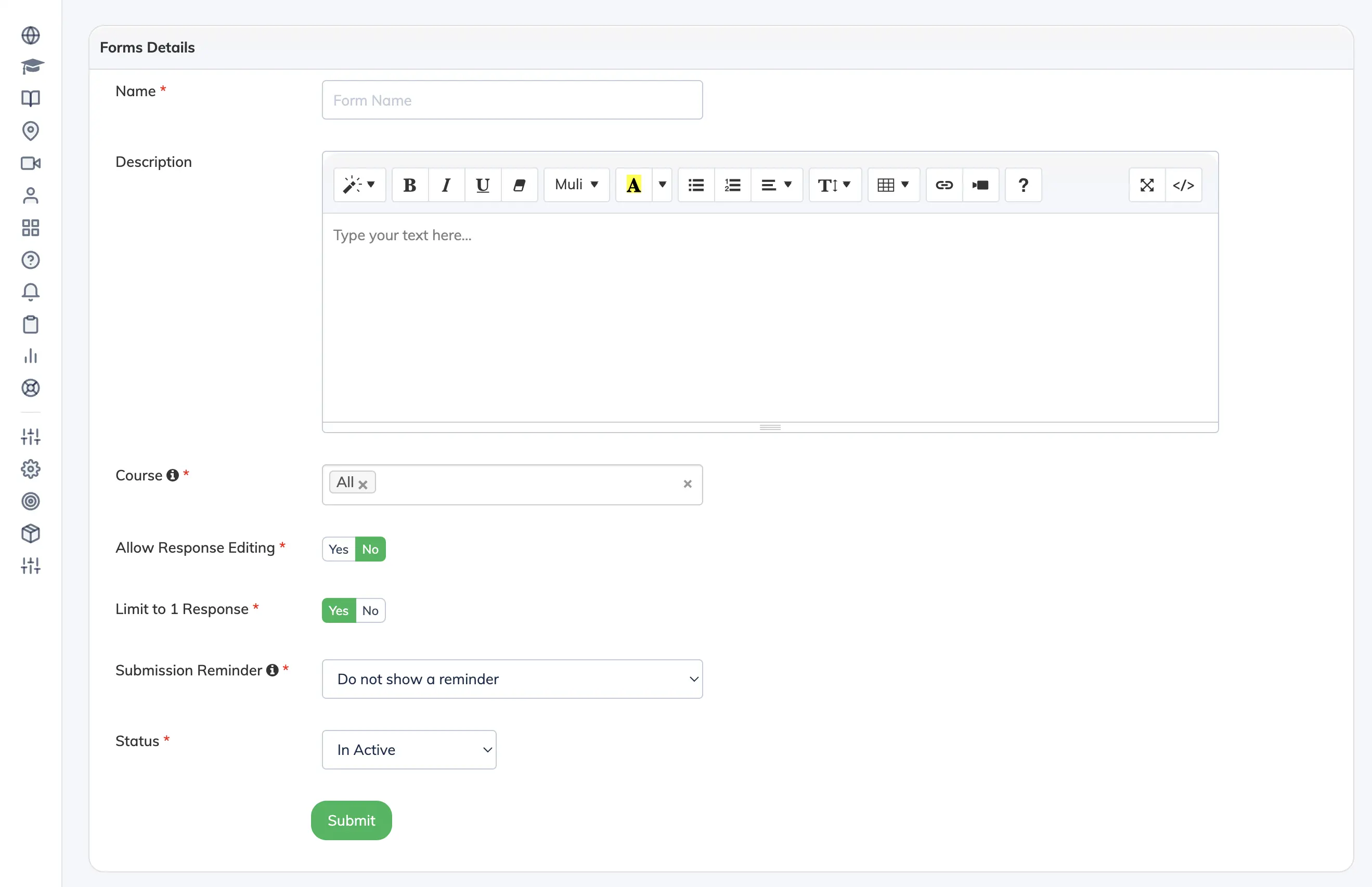
- Go to Forms → + Form.
- Enter a Name and Description.
- Select a Course to restrict responses to enrolled Trainees, or choose All. For multi-subject courses, you can select specific subjects.
- Configure the options:
- Allow Response Editing – Enable if Trainees can modify their submitted responses.
- Limit to 1 Response – Set to No to allow multiple submissions.
- Submission Reminder – Show a reminder pop-up in the course section.
- Leave Status as Inactive and click Submit.
Add Questions
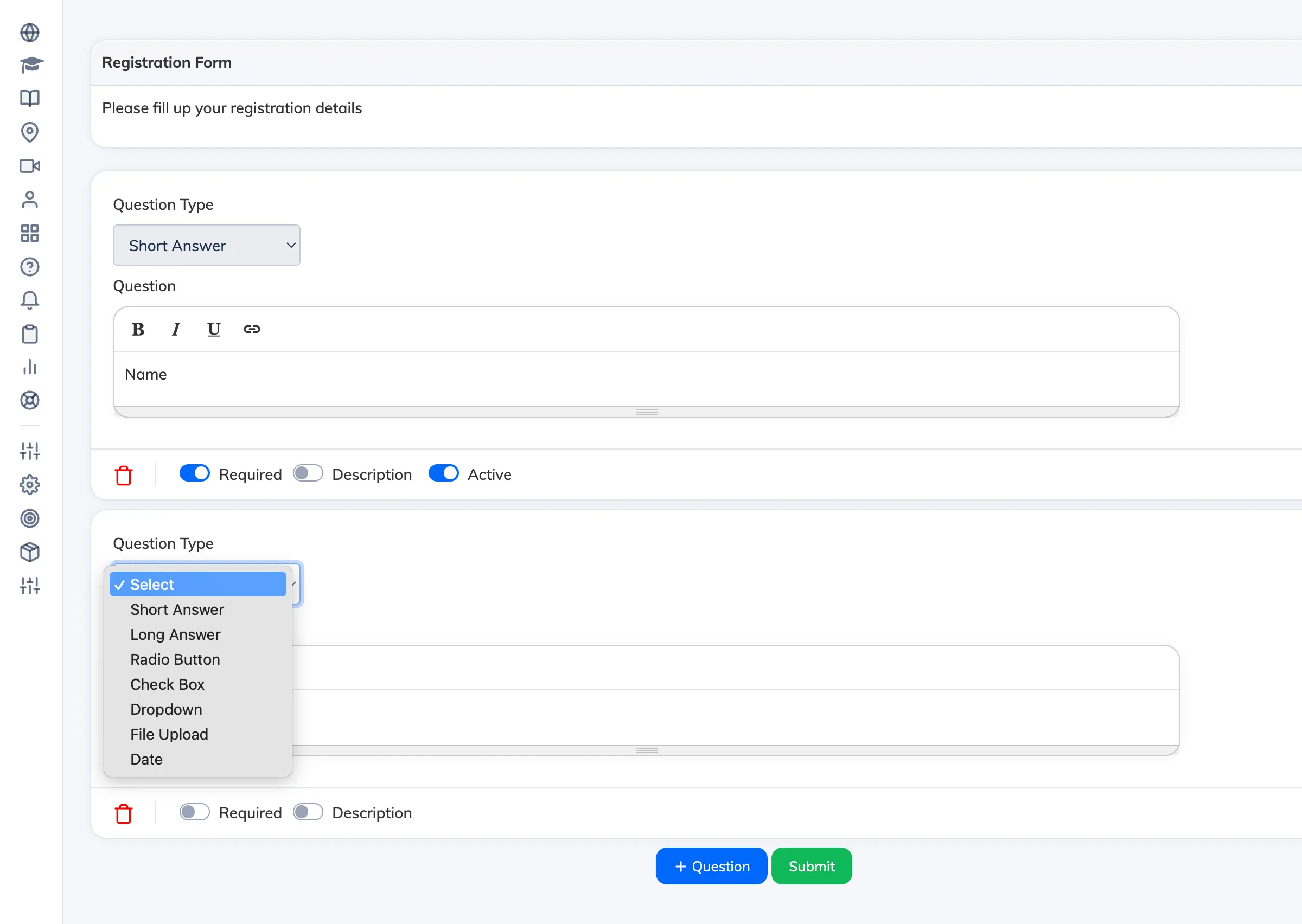
- Click the form or click Add Question in the action column.
- Select a Question Type: Short Answer, Long Answer, Radio Button, Checkbox, Dropdown, File Upload, or Date.
- Enter the question text and check Required if it must be answered.
- Optionally add a description for context.
- Click + Question to add more questions, then click Submit to save.
Preview and Activate
- Preview – Click Preview Form in the action column to review the form before activating.
- Activate – Click Edit Form → Edit, change Status to Active, and click Update.
Manage Questions
- Edit a question – Open the form, locate the question, update the text, and click Submit.
- Delete a question – Open the form, find the question, and click the delete icon. Deleting a question also removes all responses associated with it.
- Edit an answer option (Dropdown, Checkbox, Radio Button) – Navigate to the answer option, update the text, and click Submit. Answer options can only be edited if no Trainee has submitted a response yet.
Manage Forms
- Edit – Click Edit Form in the action column.
- Copy – Click Copy Form in the action column to duplicate the form.
- Delete – Click Delete in the action column. Deleting a form permanently removes it along with all responses. This action cannot be undone.
View Form Report
- Click Report in the action column to view response data. The default date range is the last 30 days – adjust as needed.
- For Short Answer and Long Answer questions, click the response count to view individual answers.
- Click Individual Trainee → View to see a specific Trainee’s responses.
- Click All Trainees to see responses across all Trainees.