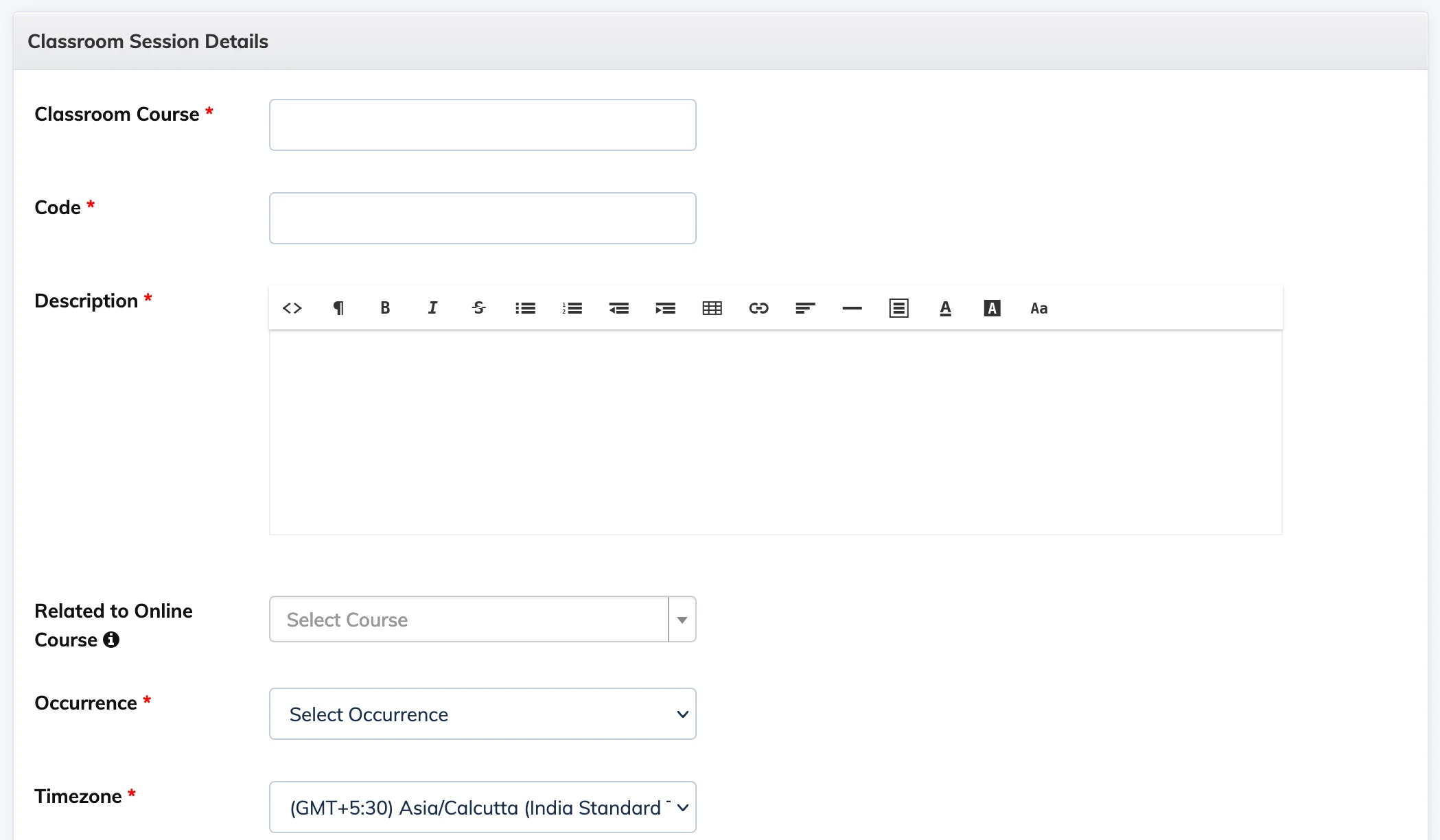
Classroom Sessions are instructor-led training events that can be scheduled as one-time or recurring occurrences. They can be linked to an existing online course so enrolled Trainees see the session details in their course view.
Steps
- Go to Classroom Sessions in the navigation bar and click + Classroom Session.
- Fill in the session details (see field reference below) and click Submit.
Field Reference
- Classroom Course – Name of the session.
- Code – A unique identifier for the session.
- Description – Additional details about the session.
- Related to Online Courses – Link this session to an existing online course. Trainees enrolled in both will see the upcoming session in their My Courses view.
- Occurrence – Set the frequency: one-time, daily, weekly, monthly, etc.
- Timezone – Select the applicable timezone.
- Session Details – Session name, start date, start time, end time, faculty name, faculty email, and venue.
- Registration Type – Whether Trainees are enrolled in all occurrences at once or each occurrence individually.
- Enrollment Process – How Trainees are enrolled: by Admin/Manager, or by self-enrollment.
- Certificate – Upload a certificate template to be issued on completion.
- Send Session Reminder Emails – Set when reminder emails are sent to enrolled Trainees.
- Assign Coordinator – Select a coordinator for the session. You can also add a new coordinator directly from this field.
- Status – Active or Inactive.
Other Actions
- Delete a session – Click the Settings icon next to the session and select Delete Classroom.
- Past sessions – Click the Concluded tab at the top to view completed classroom sessions.